HIKO Social Login Plus

HIKO Social Login Plus

Modern customer account login for Shopify Plus stores.

Social Sign-In Google One Tap Passwordless Login Biometric Passkey Customer Accounts Headless Commerce OpenID Connect Shopify Plus

Web search preview

apps.shopify.com
HIKO Social Login Plus - Social Login & Google One Tap for Shopify Plus | HIKO Software

HIKO Social Login Plus brings 17+ social logins, Google One Tap, email OTP and biometric passkeys to Shopify Plus new customer accounts. Headless, mobile apps, webhooks and Klaviyo sync.

HIKO Social Login Plus provides modern customer accounts login exclusively for Plus stores, fully supporting headless storefronts and mobile apps. Reduce login friction and boost conversion rates with instant access via 17+ social channels (WhatsApp, LINE, Apple, Kakao), Google One Tap, or passwordless email OTP with biometric passkeys. Seamlessly sync profiles to Klaviyo, and scale via robust APIs, webhooks, flexible styling, and 15 languages.

Built for Shopify Plus. This app extends Shopify's new customer accounts, which are available on Shopify Plus. Looking for social login on any Shopify plan? See HIKO Social Login.
Features

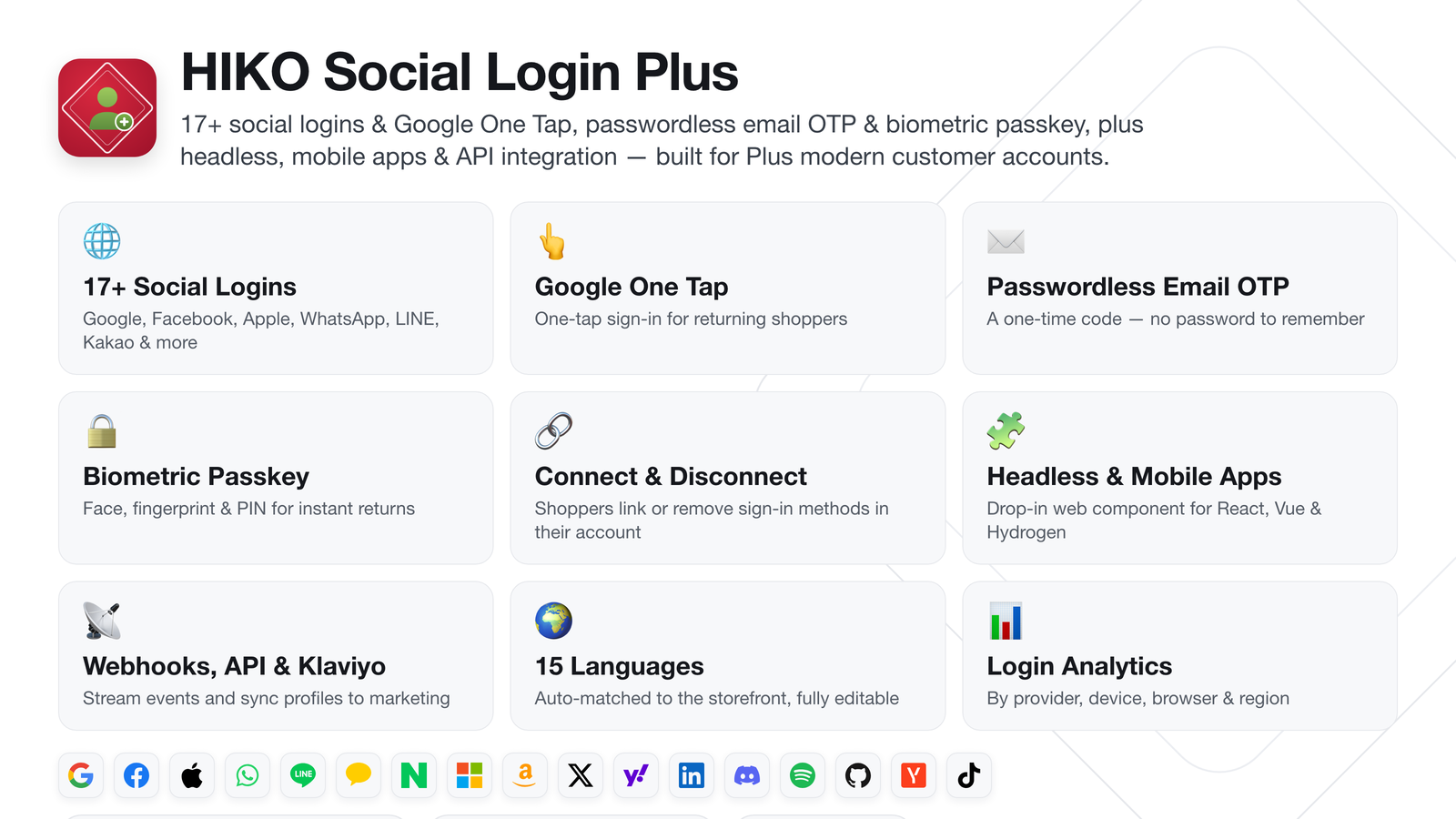
HIKO Social Login Plus — feature overview

Every way your shoppers prefer to sign in, in one widget.

Social Login

Sign In With the Account They Already Have

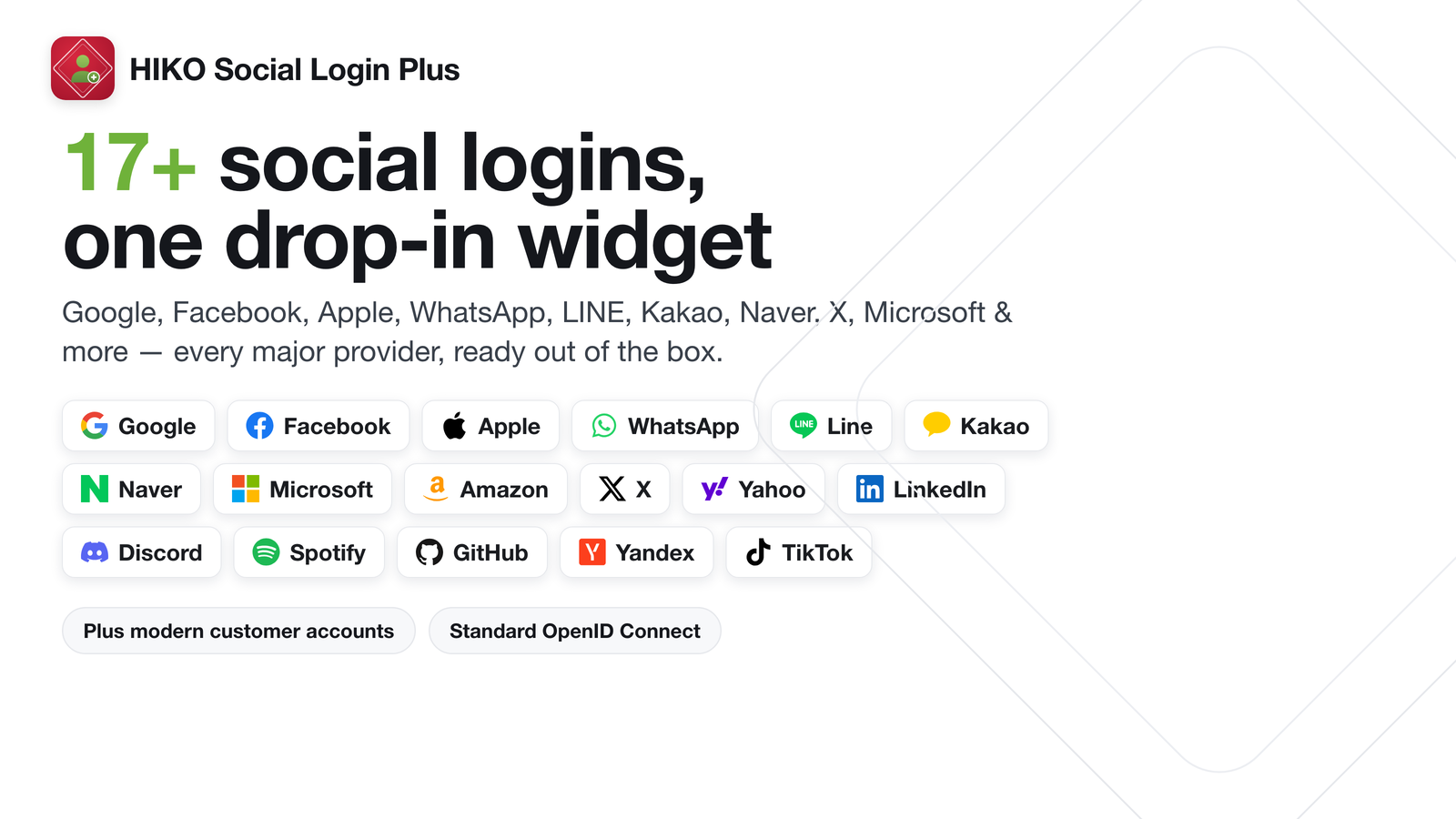
Every password a shopper has to create is a chance to lose them. HIKO Social Login Plus puts 17+ social providers in one tidy sign-in popup, so customers use an account they already trust — Google, Facebook, Apple, WhatsApp, LINE, Kakao, Naver and more.

It is built on standard OpenID Connect, so you can bring your own OAuth client IDs and secrets for each provider. No lock-in, and your own branding shows on the consent screens.

  • 17+ providers covering global and regional platforms
  • Bring your own social app credentials per provider
  • Standard OpenID Connect — no proprietary protocol
  • Shoppers connect and disconnect methods in their account

Sign-in popup

Sign-in popup with 17+ social login providers

Instant Returns

Returning Shoppers Sign In With One Tap

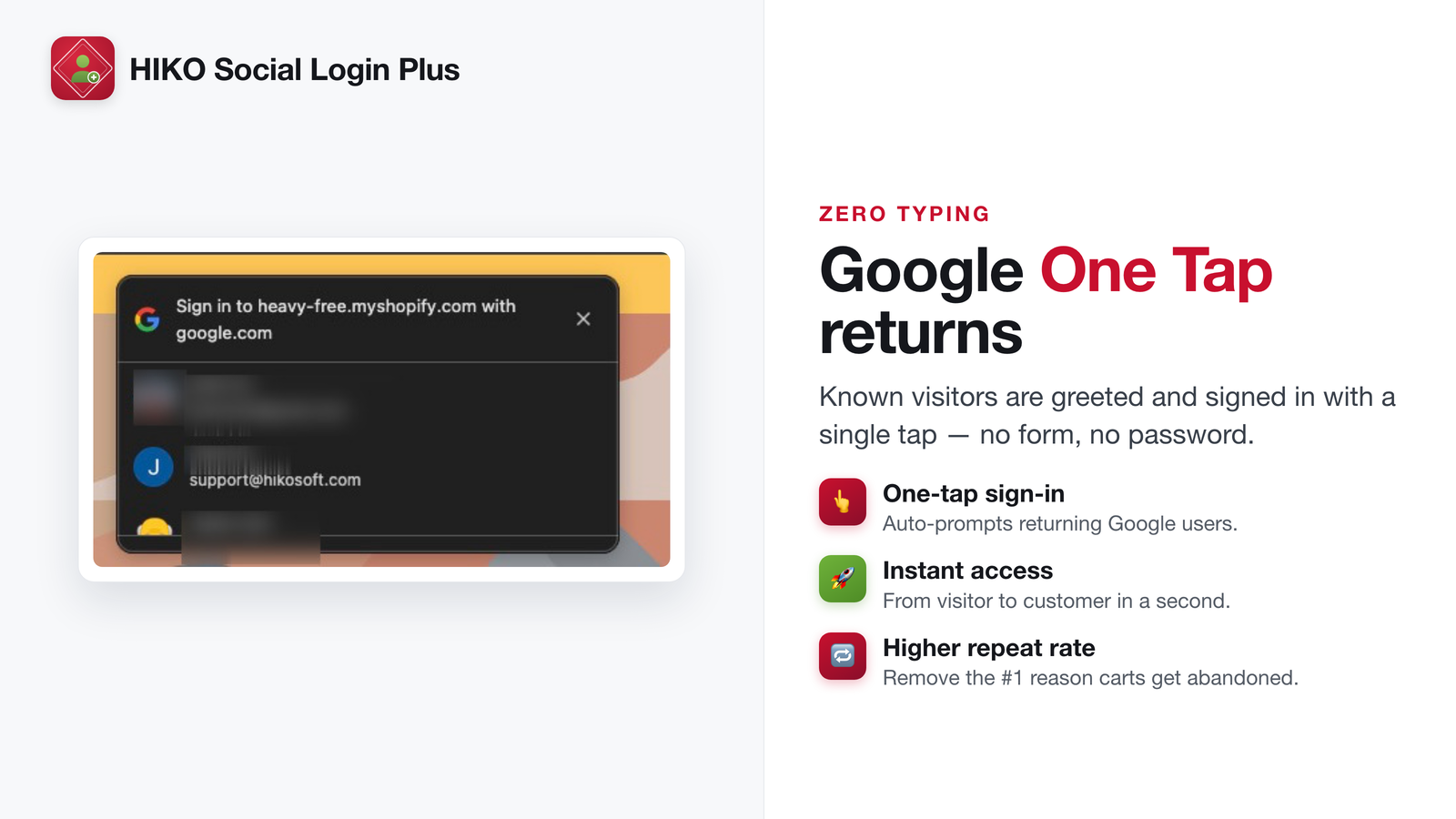
The Google One Tap prompt appears automatically for signed-out visitors who have used Google before. There is no typing, no redirect, and no separate login page — they are back in their account before they lose their place.

For a returning customer, the difference between one tap and one forgotten password is often the difference between a completed order and an abandoned cart.

  • One Tap prompt shows automatically for signed-out visitors
  • No redirect away from the page they are browsing
  • Works alongside every other sign-in method

Google One Tap

Google One Tap prompt for one-tap returning sign-in

Passwordless

No Social Account? No Password Either

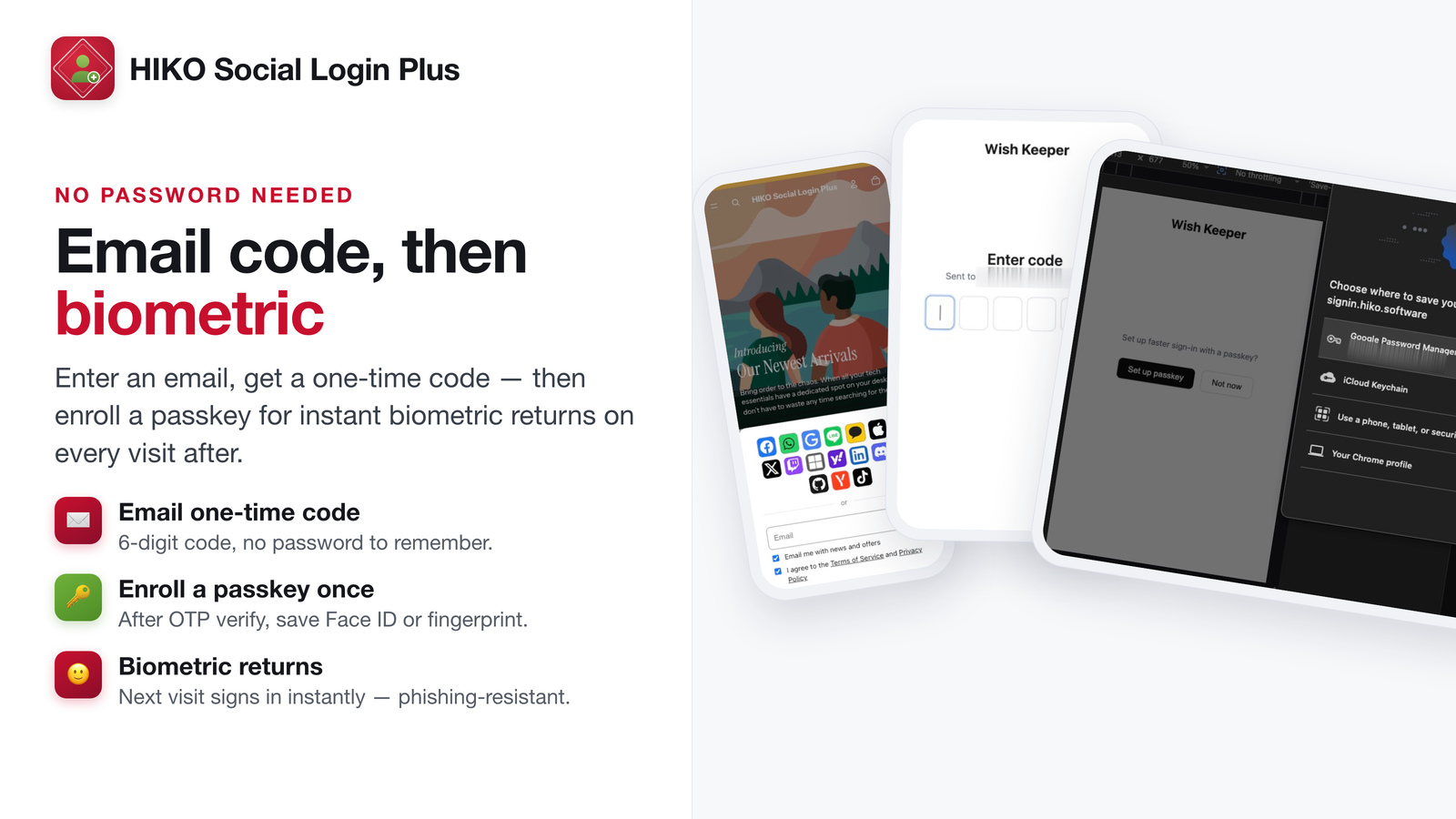
Shoppers without a social account receive a one-time code by email and sign in straight away. Nothing to remember, nothing to reset, and no password for you to store.

Once verified, they can enable a biometric passkey — fingerprint, face or PIN — so the next visit takes a single tap. It is the convenience of a saved password with none of the risk.

  • One-time email code, no password to remember
  • Optional biometric passkey for instant returns
  • Face, fingerprint or device PIN
  • Marketing opt-in captured at sign-in, synced to Shopify consent

Email code & passkey

Email one-time-code sign-in, then passkey enrollment

Headless & Mobile

The Same Sign-In Everywhere You Sell

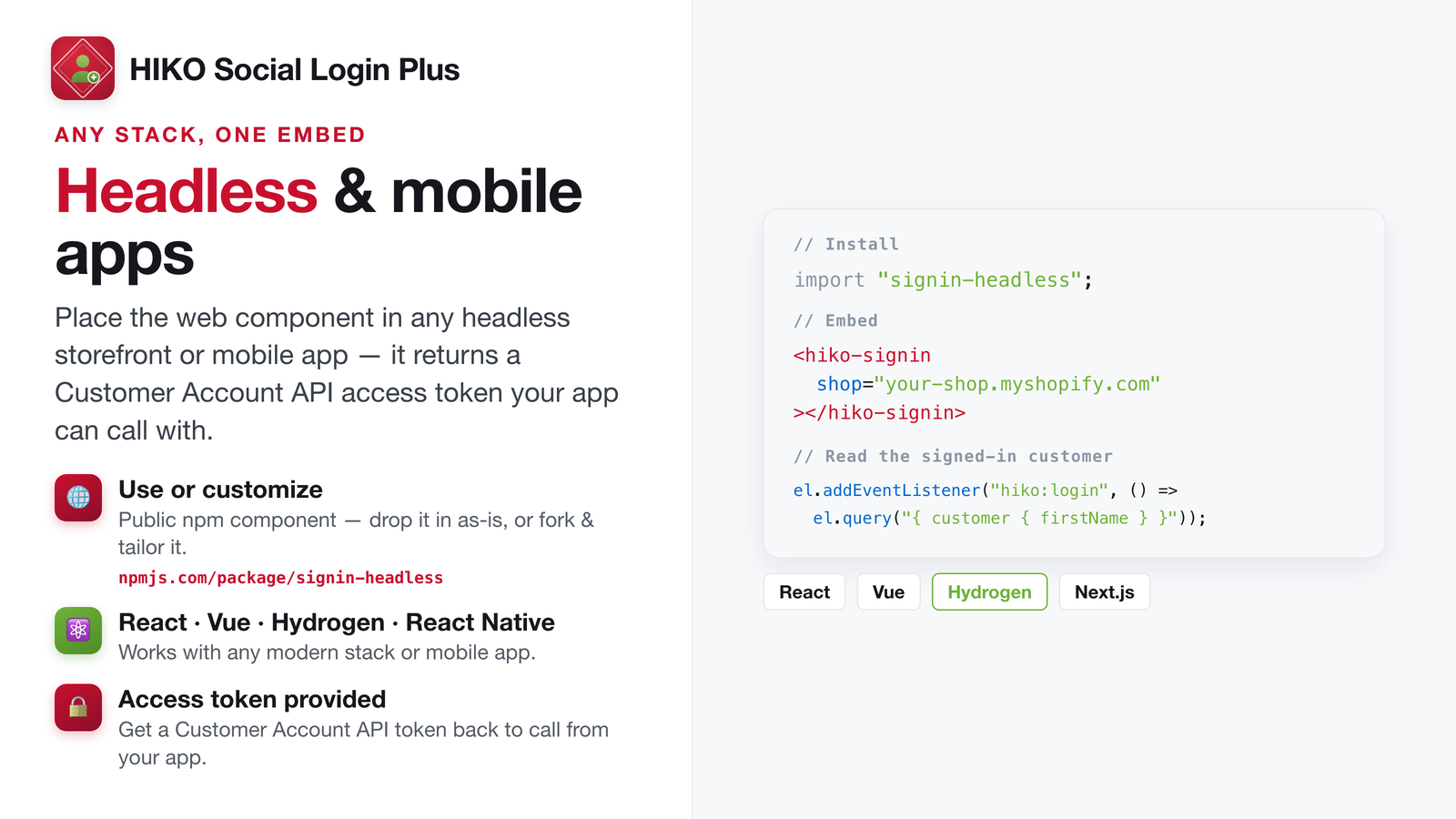
A headless storefront or a native mobile app should not mean rebuilding authentication from scratch. Drop in a web component for React, Vue or Hydrogen and get the same sign-in experience your Shopify theme uses.

Webhooks and APIs stream sign-in events wherever you need them, and customer profiles sync straight to Klaviyo so marketing has the data the moment someone joins.

  • Drop-in web components for React, Vue & Hydrogen
  • Native mobile app support
  • Sign-in webhooks and a documented API
  • Klaviyo profile sync on sign-in

Headless web component

Headless web component for React, Vue and Hydrogen

Analytics

See How Your Shoppers Actually Sign In

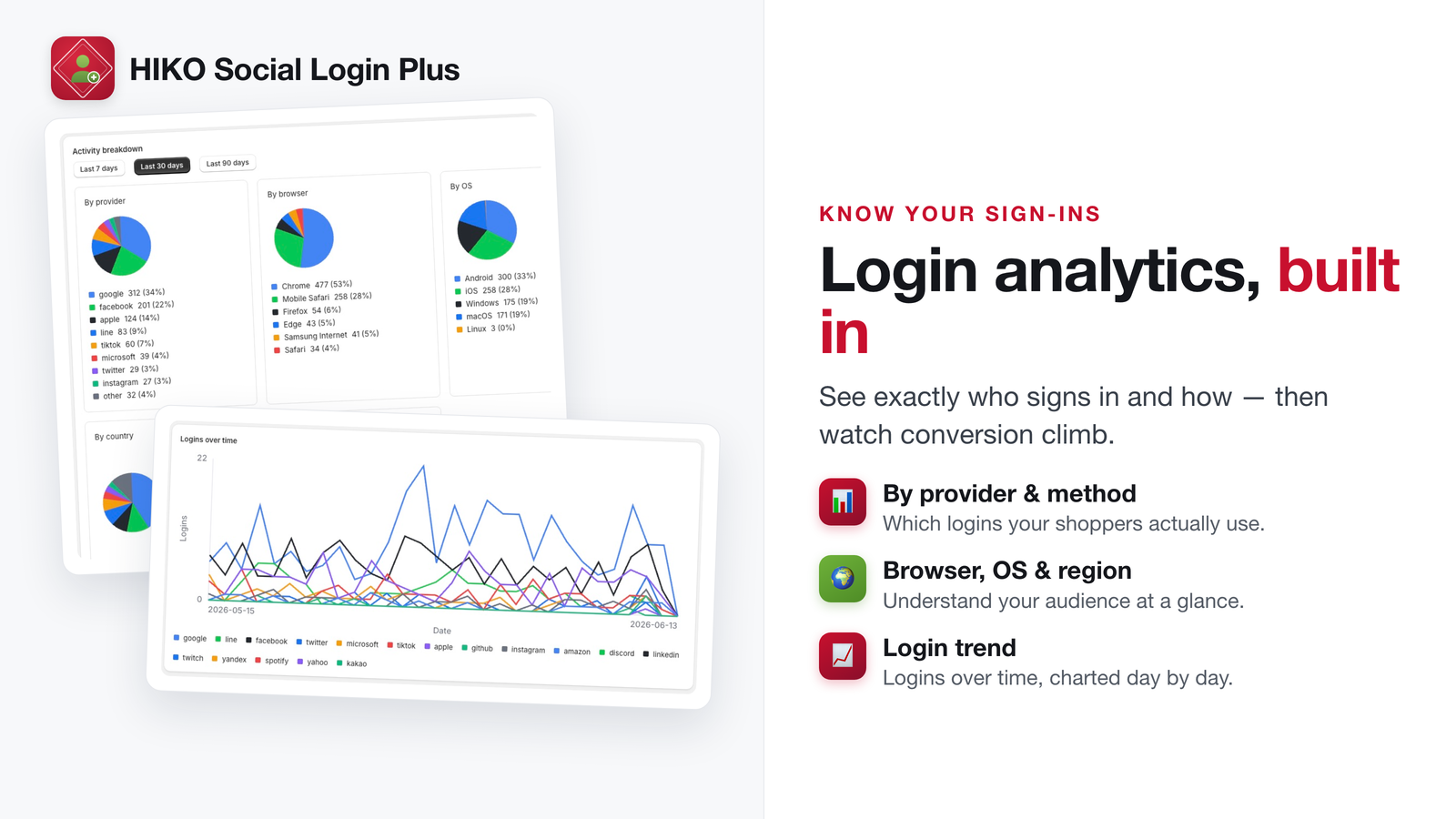
Guessing which login methods matter is expensive — you end up maintaining providers nobody uses and missing the one your market expects. Login analytics break sign-ins down by provider, device, browser and region.

Turn off what nobody touches, add what your customers keep asking for, and prove the effect on conversion with real numbers.

  • Sign-ins by provider — see which ones earn their place
  • Device and browser breakdown
  • Regional distribution across your markets

Login analytics

Login analytics by provider, device and region

Make It Yours

Your Styles, Your Words, 15 Languages

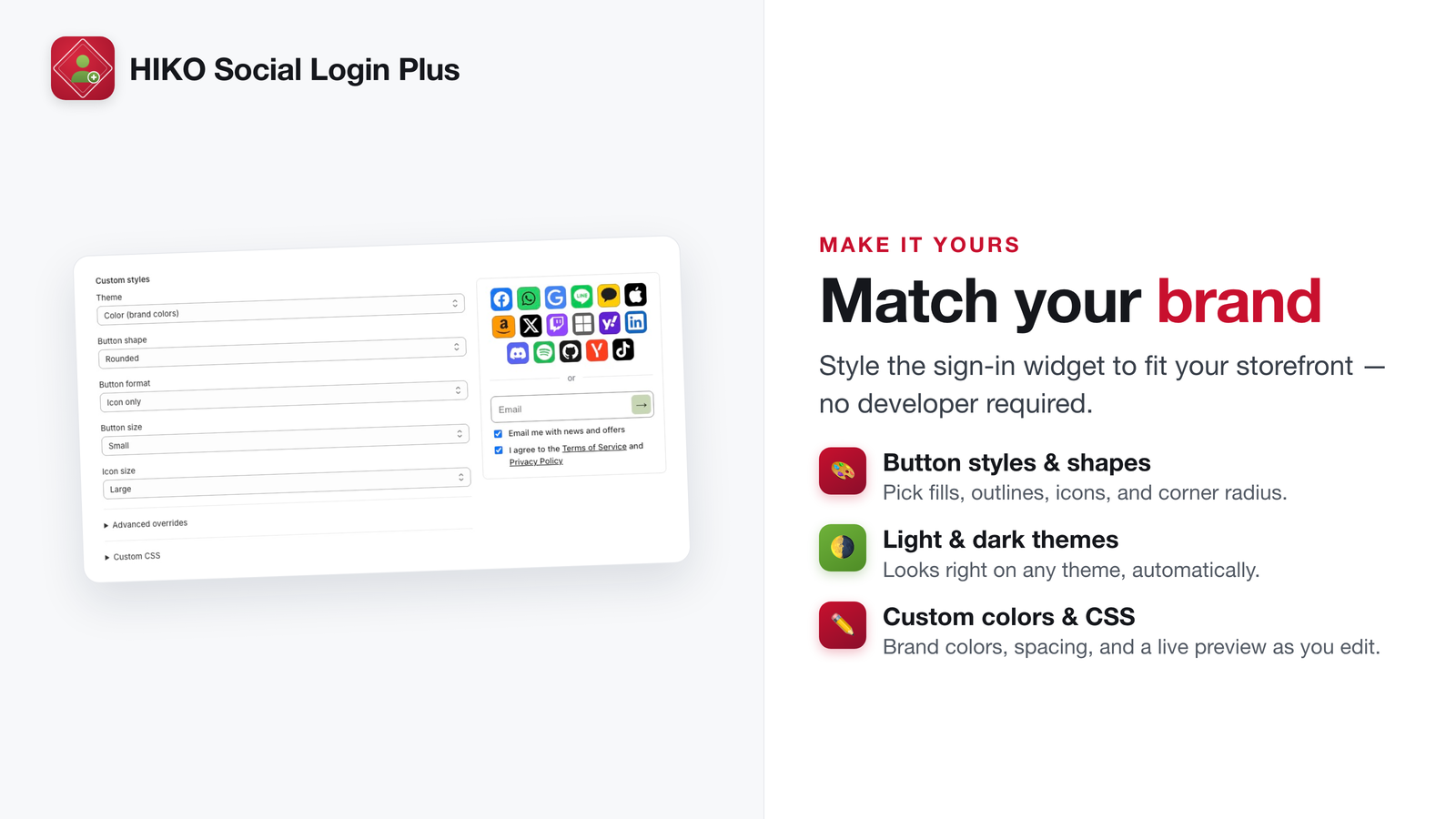
The sign-in widget is the first screen many customers see of your brand, so it should not look like someone else's. Match it with custom button styles, themes and colors, and edit every line of widget text from the admin.

It ships in 15 built-in languages and matches the storefront language automatically, so a shopper in Tokyo and a shopper in São Paulo each get their own.

  • Custom button styles, themes and brand colors
  • Every line of widget text editable from the admin
  • 15 built-in languages, auto-matched to the storefront
  • No-code setup with a theme app block

Styles & languages

Style the sign-in widget to match your brand

Why Plus Merchants Choose HIKO Social Login Plus

Six reasons to add it to your Shopify Plus store today

🚀

Fewer Abandoned Sign-Ups

Every password you do not ask for is a customer you do not lose at the door.

📱

One Tap to Return

Google One Tap and biometric passkeys bring repeat customers back instantly.

🌎

Built for Your Markets

WhatsApp, LINE, Kakao and Naver alongside the global providers, in 15 languages.

🔑

No Lock-In

Standard OpenID Connect with your own provider credentials. Your identity stays yours.

🧩

Headless Ready

The same sign-in across your theme, a headless storefront and your mobile app.

📊

Decisions With Data

Analytics by provider, device and region tell you which methods actually earn their place.

Pricing Plans

One plan, everything included

Frequently Asked Questions

FAQ

What does this app do?

It adds social and passwordless sign-in to your online store. Shoppers can sign in with providers like Google, LINE, Facebook and Apple, with a one-time code sent to their email or WhatsApp, or with a passkey — no password to remember. Every sign-in maps to a Shopify customer account.

Which Shopify plan do I need?

The app is for Shopify Plus stores on new customer accounts. If your store is on another plan, or still uses classic (legacy) customer accounts, setup is blocked and a notice explains what has to change. If you have just upgraded or switched, reopen the app to re-check.

Is there a charge, and how is it billed?

A paid subscription is required. Plans and prices are shown on Shopify's own subscription page, and Shopify bills you for them on your Shopify invoice — we never charge you separately. Until you subscribe, opening the app takes you straight to that subscription page; every settings page unlocks once the subscription is active.

Development stores (including Plus sandboxes) don't need a subscription and get the full feature set, so you can build and test first.

Why does installing ask for access to customer data?

The install screen asks for three permissions, each tied to a real feature:

  • read_customers — look up an existing customer by email so a social sign-in joins their existing account instead of creating a duplicate.
  • write_customers — sync the marketing opt-in checked at sign-in to that customer's Shopify marketing consent, and write the social-identity tags and metafield.
  • read_locales — read your store's primary language so mail goes out in the right one.

Customer data is protected customer data on Shopify, so these permissions need extra approval. Without them, marketing-consent sync and existing-customer matching cannot work.

What pages are in the app?
  • Dashboard — the setup guide, a sign-in activity summary, and the last 7 days of sign-in trend. Click the app name in the sidebar to come back here.
  • Customer analytics — your customers, individual sign-in records, trends and activity breakdowns.
  • Identity providers — nearly every sign-in setting lives here: the custom provider (the link to customer accounts), social media, custom styles, email sign-in, marketing opt-in, marketing platforms and social sign-in identity.
  • Storefront widget — how sign-in appears on your online store, and where shoppers go afterwards.
  • Integrations — Shopify Admin API, outbound webhooks, headless and mobile sign-in.
  • Translations — the widget and verification (OTP) page copy, per language.
How do I connect the app to Shopify customer accounts?

This is the one setup step you must do. The app itself is an identity provider that Shopify talks to:

  1. Open the Identity providers page (or the dashboard setup guide) and find the Custom provider section.
  2. Click Create custom provider to open Shopify admin → Settings → Customer accounts and add a third-party identity provider. Choose "Custom or other" and give it a name.
  3. Copy the Discovery URL, Client ID and Client secret shown in the app into the matching fields, and set the post-sign-out redirect URI parameter name to the value shown (post-sign-out). Don't skip that field — without it, signing out is incomplete.
  4. Save, then Activate the provider.
  5. Back in the app, click Check configuration. It probes your live storefront and tells you whether the link is working, whether the Client ID is stale, or whether the store still points somewhere else.
How do I add a social provider?
  1. Open the Social media section of the Identity providers page.
  2. Expand the provider you want (for example Google) and click How to get your Client ID and secret for step-by-step instructions.
  3. Create an OAuth app in that provider's console, copy the Client ID and Client secret, paste them in and enable the provider.
  4. Click Save.

Each provider's setup guide links straight to the right console and lists the exact steps. You can also drag providers into the order you want right in that list — the preview beside it updates as you go.

Which providers are supported?

16 social providers: Google, Facebook, Apple, LINE, Kakao, X (Twitter), TikTok, Amazon, Twitch, Microsoft, Yahoo, LinkedIn, Discord, Spotify, GitHub and Yandex. Plus email one-time code, passkey and WhatsApp sign-in. You choose which of them appear on the widget, and in what order.

Can I use my own social app credentials?

Yes. You can bring your own OAuth Client ID and secret for every provider — no lock-in, and the consent screen shows your own branding. Some providers have extra options: Apple key details, Amazon region, the LINE add-friend prompt, Kakao channel and scopes, and a Google icon-style picker.

Can I try it on a test store before going live?

Yes, and development stores don't need a subscription. Two things to know:

  • A password-protected storefront makes "Check configuration" inconclusive. It has to reach your live storefront to tell whether sign-in routes to this app; blocked by the password, it reports that it couldn't check — which does not mean your setup is wrong.
  • A provider's OAuth app usually needs your test store's domain registered too. Confirm the callback URL is registered for both your live and test stores.
Can I add WhatsApp sign-in?

Yes. Shoppers receive a one-time code over WhatsApp. Start on our shared number (10 codes per shopper per day, 2000 per store per day, on us), or connect your own WhatsApp Business number on the Identity providers page to control sending, the message template, the template button type, your own per-store caps and billing.

What is email sign-in (one-time code / passkey)?

Email sign-in lets customers sign in with a code sent to their email — no password. Once verified, the app invites them to create a passkey (Face ID, fingerprint or device PIN) — a passkey is an upgrade after the one-time code, not a separate way in. Both toggle independently in the Email sign-in section of the Identity providers page (or the dashboard setup guide).

Can I customize the verification email?

Yes, in the Email sign-in section of the Identity providers page:

  • Custom SMTP — send one-time codes through your own mail server (including Outlook / Office 365) so mail comes from you, not us. Once filled in, use Send test email to confirm the settings work.
  • Custom OTP email — edit the subject and HTML body per language, with a visual and an HTML editing mode, a live preview, and placeholders like {code}, {shop} and {minutes}. Customized languages are marked "Customized" and can be reset to default at any time.
Can I customize the page where the code is entered?

Yes. In the same Email sign-in section, Custom OTP page lets you rewrite the entire verification page's HTML per language — heading, code input, resend link, everything. It offers the same visual and HTML editing modes. If your HTML is missing something sign-in actually needs, the save is rejected and tells you what's missing; the live page is untouched.

There is also a Host the OTP page on your storefront toggle. Turn it on and shoppers enter the code on your own domain, inside your own theme, instead of ours. It is off by default and needs an online-store theme with the app installed.

What is Google One Tap?

One Tap shows Google's one-click sign-in prompt to shoppers who aren't signed in yet. It is off by default — once Google is configured, turn it on from the dashboard or from the Google row on the Identity providers page.

How do shoppers sign in?

They use the sign-in widget on your online store. They pick a social provider, or enter an email (or WhatsApp number) to get a one-time code. Once verified they're signed in to your store — and can opt into a passkey for a one-tap return next time. The widget also marks the method a shopper last used successfully with a "Last used" badge, so returning shoppers spot it immediately.

What happens if a shopper skips the widget and goes straight to the sign-in page?

They still get the sign-in methods you configured. Because this app is registered as an identity provider in customer accounts, every path that leads to sign-in — checkout, an account link, typing the URL — is handed to this app by Shopify.

The app then tries, in order: complete the sign-in silently using a still-valid "keep me signed in" session; failing that, show a sign-in page we host that mounts exactly the same widget as your storefront — the same providers, the same styling and copy. So there is nothing extra to configure for that path.

Some providers don't give out an email address — what happens then?

Shopify strictly requires a verified email address with every sign-in, or it blocks it. Providers like X (Twitter) and TikTok don't always return one.

When that happens, the app inserts one extra step after the provider authorizes: the shopper enters an email address and verifies it with a one-time code, and only then is the Shopify sign-in created. The same person won't be asked again next time they use that provider — we remember the pairing. That's why sign-in with these few providers has one more step than Google.

If one person signs in with two different social accounts, do I get two customers?

Not if the email address is the same. Customers are identified by their verified email address, so someone who uses Google first and Facebook later is one customer as long as both carry the same email — sign-in counts accumulate and customer analytics shows a single row.

Different email addresses do produce two customers, deliberately: we can't prove they're the same person. To merge them, have the customer sign in and link the accounts themselves from Connected sign-in methods on their account page, with Allow connecting accounts with a different email enabled on the Storefront widget page.

What happens the first time an existing customer signs in socially?

They're joined to the existing customer — no duplicate. The match is on email: if the social account's verified email matches a customer already in your store, that sign-in signs them in as that customer, with their order history and addresses intact.

Can customers manage their connected sign-in methods themselves?

Yes. Add the account page block from the Storefront widget page and signed-in customers see their connected sign-in methods on their customer-account profile page, where they can disconnect one or connect a new one.

That same section has an Allow connecting accounts with a different email toggle (off by default). With it on, a customer can connect a social account whose verified email differs from their account email, and signing in with it afterwards resolves to that account. It overrides the provider's own email, so enable it only if you trust customers to connect accounts they actually own.

How do I show sign-in on my online store?

Four ways, all set up on the Storefront widget page:

  • Account icon popup — click Enable in theme to open the theme editor's App embeds, turn on Sign-in widget and save. Clicking the header's account icon then opens the sign-in popup. If your theme is unusual, add a custom CSS selector in the Account control section, or choose to use only your selector and skip auto-detection.
  • Sign-in page — link to /apps/signin from your theme (a header menu item, for example) to open the full hosted sign-in page.
  • Sign-in card block — from the theme editor's Apps tab, add the inline Sign-in app block to any section.
  • Connected sign-in methods — add the account page block so signed-in customers can view and disconnect their connected social sign-in methods on their profile page.
Where does the account icon take a customer who is already signed in?

By default it keeps your theme's own link. If you have your own account hub, set the Account page link when signed in on the Storefront widget page (a path on your store, for example /a/accounts) and signed-in customers clicking the header account icon go there.

Can I control where shoppers land after signing in, and keep them signed in?

Yes, on the Storefront widget page. Set the post-login redirect — back to the page they signed in from, the page they visited before that, or a specific path (note: Google One Tap always leaves shoppers on the page they were already on, whatever this is set to). Keep me signed in (SSO session) keeps returning customers signed in for a period you choose (1–90 days, 30 by default) so they don't re-authenticate on every visit; you can also choose to leave Shopify's own session lifetime untouched.

Can I customize how the widget looks?

Yes, in the Custom styles section of the Identity providers page: theme, button shape, size, layout (icon / label / icon + label / label with the icon on the right), icon size and the divider — plus advanced overrides for background and border color, border width, button height, icon and label size, and label weight and color.

For finer control, turn on Custom CSS: the app generates a complete, commented CSS template from your current settings as a starting point (classes like .hs-btn and .hs-lbl) for you to edit, and you can regenerate it from your settings at any time. Set background, border and button height in the fields above rather than in CSS. Every change is reflected live in the preview beside it.

Can I change the text on each sign-in button?

Yes. Expand any provider on the Identity providers page and you'll find a Button text field, set per language — so the Google button can read differently in English and Japanese. Leave it empty to use the built-in translation.

Can I change the wording or translate it?

Yes. The widget ships in 15 languages and follows each shopper's online-store language automatically. On the Translations page you can override any string in the sign-in widget and the verification (OTP) page per language, and even add a language that isn't listed; "Reset to default" restores a whole language to the built-in copy. The marketing and consent checkbox text is edited directly in the marketing opt-in section of the Identity providers page instead (also per language, and it accepts HTML).

The app's own admin is available in 11 languages, switchable from the language menu in the header.

Will the sign-in widget slow my store down?

Not noticeably. The widget is a single bundled file served from Shopify's own CDN and loaded with defer — it runs after the page renders and never blocks the first paint. The popup and the card block share the same file, so a page loads it only once. And the sign-in card block isn't rendered at all for customers who are already signed in.

Can I collect marketing opt-in and terms consent?

Yes, in the Marketing opt-in section of the Identity providers page. The "Email me with news and offers" checkbox at sign-in syncs to the shopper's Shopify marketing consent; you choose whether it is pre-checked (note: pre-checking is not allowed under GDPR/ePrivacy in the EU/UK) and whether leaving it unchecked unsubscribes them. The same section can also require a terms consent checkbox before sign-in. Both checkboxes' text and links are edited here, per language.

If the box is checked by a customer who doesn't exist yet, the consent is held and applied when Shopify actually creates that customer — so a just-registered customer won't show the consent immediately. That's expected, not a dropped opt-in.

Can I sync sign-ups to Klaviyo, Mailchimp or Omnisend?

Yes. In the Marketing platforms section of the Identity providers page, connect Klaviyo, Mailchimp or Omnisend with your API key — "Validate key" confirms the connection, then "Fetch lists" lets you pick which lists customers join — and choose whether to sync everyone on every sign-in or only shoppers who opted in. You can also tag synced customers with social-login or a tag of your own, and create social-login and Google One Tap sign-in metrics in Klaviyo.

Can I tell which social account a customer signed up with?

Yes, in the Social sign-in identity section of the Identity providers page:

  • Tags — tag a customer automatically when they sign in socially. The template defaults to uid_%(social)s_%(user_id)s, and the available variables are %(social)s and %(user_id)s. (IP is deliberately not offered: it changes on every sign-in and would exhaust Shopify's limit of 250 tags per customer.)
  • Customer metafield — always on: every social sign-in writes JSON to a customer metafield recording the provider, user ID, name and when it was linked. Read it from your theme with {{ customer.metafields.hiko.social_identities }}.
Do you support headless storefronts, mobile apps or APIs?

Yes, on the Integrations page:

  • Headless and mobile sign-in — configure the Customer Account API OAuth client and allowed origins to add social, email OTP and biometric sign-in to a headless web storefront and to native mobile apps (React Native, iOS, Android). The page has step-by-step instructions for getting the Client ID, an explanation of custom URI schemes for mobile apps, and links to the SDKs and GitHub repositories.
  • Shopify Admin API — ready-made example queries for reading your customers and their metafields with an access token you create yourself.
Can I get a webhook when someone signs in?

Yes. On the Integrations page, set an HTTPS endpoint and enable outbound webhooks for customer.login, customer.connected and customer.created. Every request is signed with a secret you generate (X-HIKO-Signature), and there's a Send test event button, a log of recent deliveries, and a ready-to-use Node.js signature-verification example.

Where do I see who signed in?

The Customer analytics page lists your customers and individual sign-in records, with search, filters and CSV export. It also shows sign-ins over time and breakdowns by provider, browser, operating system, country and city. Click any customer for their details — phone, tags and connected social identities — and delete them (along with their sign-in records) if you need to. The dashboard also shows recent sign-in activity and a 7-day trend.

The customer count here is usually lower than the total in your Shopify admin, and that's correct: this page counts only people who have signed in through this app. Customers created at checkout, by import or any other way don't appear here.

What customer data do you store, and for how long?

Only what sign-in and analytics need:

  • Customers — email address, name, which providers they used and their user IDs there, first and last sign-in, and sign-in count.
  • Sign-in records — the time, provider, browser, operating system and approximate location (country / city) of each sign-in.
  • Short-lived state — one-time data used during sign-in (the sign-in choice hint, one-time codes, the "keep me signed in" session) lives from a few minutes up to the number of days you set, and expires by itself. The "keep me signed in" session is encrypted at rest.

We do not store customers' passwords at their social providers, and we don't keep providers' long-lived access tokens. The customer and sign-in data above is kept until that customer is deleted, or until you uninstall the app (see the next two answers).

What do I do when a customer asks for their data to be deleted?

Either route works:

  • Delete it yourself — open that customer on the Customer analytics page and delete them. Their customer record and all of their sign-in records go with it.
  • Use Shopify's process — when a customer files a data deletion or data request through Shopify, Shopify notifies this app and we erase that customer's data here automatically. Nothing extra for you to do.
Are my Client secrets and SMTP password safe?

Stored secrets are masked in the admin and never sent back to the browser in plain text; leaving a secret field empty when you save means "keep the stored value", so it can't be wiped by accident. The webhook signing secret is shown in full only once, at the moment you generate it — copy it then.

You can regenerate the custom provider's Client secret at any time (you'll be asked to confirm); the old one stops working immediately. Remember to paste the new value back into your Shopify customer accounts settings afterwards, or sign-in will break.

What happens after I uninstall the app?

At uninstall, all of your settings (providers, credentials, styles, SMTP, marketing) are cleared and sign-in sessions are invalidated. Customer and sign-in analytics are then erased about 48 hours later, when Shopify notifies us as its rules require.

So reinstalling starts from a clean slate: every provider credential has to be entered again, and the custom provider in Shopify customer accounts has to be set up again with a new Client ID and secret. The customers themselves stay in Shopify — they're Shopify's customers, not ours — but the record of who signed in with which social account does not come back.

The sign-in widget isn't appearing on my storefront

Check in this order:

  • The app embed isn't enabled. The popup needs Sign-in widget turned on and saved in the theme's App embeds — Enable in theme on the Storefront widget page jumps you straight there.
  • The account icon wasn't recognized. Auto-detection covers most themes but can miss heavily customized ones; add that element's CSS selector under Account control.
  • You're signed in yourself. The sign-in card block isn't shown to signed-in customers — test in a private window.
A shopper clicked a provider and sign-in failed
  • The custom provider was saved but not activated. This is the most common cause. Confirm it's active in your Shopify customer accounts settings, then verify with Check configuration.
  • The Client ID is stale. If you regenerated the secret or reinstalled the app, Shopify may still hold the old value — Check configuration tells you exactly which one it sees.
  • That provider has no credentials. Providers without credentials are flagged in the list; their buttons won't work.
A provider says "Invalid redirect URI" — what went wrong?

Make sure the Callback URL shown for that provider is registered, exactly as shown, in that provider's console. Your store-domain callback is used only when you use your own Google client; in every other case (including our shared Google client) the broker callback shown next to the provider's fields is used. Copy the value exactly.

A shopper isn't receiving their verification code

Email: have them check the spam folder first. If you configured custom SMTP, use Send test email to confirm the server settings and sender address work — a sending domain without proper authentication records is easily filed as spam. Also note that a single email address can receive at most 20 codes per day; when that cap is hit, the shopper is told so directly.

WhatsApp: on your own number, the message template must be a Meta-approved authentication template and the template language code must match what you entered. On the shared number, the caps are 10 codes per shopper per day and 2000 per store per day.

A shopper signs out and is immediately signed back in

This is almost always the post-sign-out redirect URI parameter name not being set. With "keep me signed in" enabled we remember that shopper separately, and Shopify has to tell us at sign-out before we clear that memory.

Go back to Shopify admin → Settings → Customer accounts, open your custom provider, and confirm that field is set to post-sign-out (matching the value shown in the app). Save, then test signing out again.

I still need help.

Use the Support button in the header to message us (attachments welcome) and we'll reply by email.

Ready to Remove the Login Barrier?

Give Shopify Plus shoppers the sign-in they already know. Try the live demo store.

View on App Store