Variant-aware wishlists with alerts, collaborative sharing, draft orders & 15+ languages.
Web search preview
Boost sales with wishlists, sale & restock alerts, draft orders with invoices, one-tap checkout, social sharing, analytics & 15+ languages. Free plan available.
HIKO Wish Keeper helps merchants turn browsing into buying. Customers save favorites, organize custom lists, pick exact variants before saving, and share via Facebook, X, WhatsApp, or collaborative links. Automated alerts fire when items go on sale, restock, or match new-arrival schedules — opt-in handled from your storefront. Merchants create draft orders, set exclusive offers and discounts, reserve inventory with expiry, and send invoices customers pay in one tap. REST API & 15+ languages.
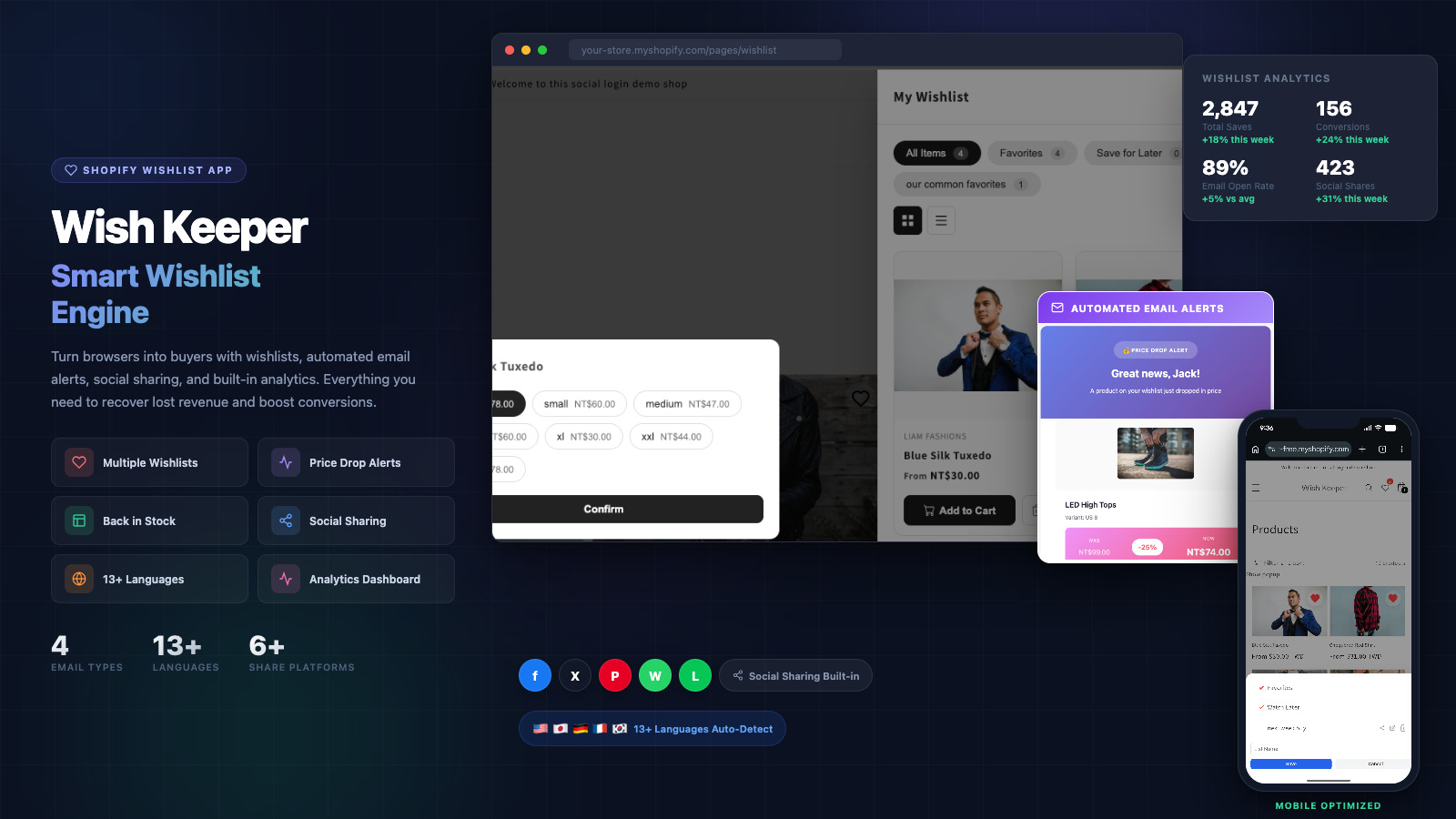
Wishlists that drive sales — alerts, orders & one-tap checkout.
Wishlist Management
HIKO Wish Keeper goes beyond a simple save button. Customers can create multiple named wishlists — one for birthdays, another for home decor, a seasonal picks list — and organize products the way they think. Each list can be shared privately or publicly, making it easy for gift-giving and collaborative shopping.
Guests can start saving immediately without creating an account. When they do sign up, their wishlist carries over seamlessly. Merchants get full control over display options including grid and list views, customizable icons, and flexible widget placement on product pages, collection pages, or anywhere in the theme.
Email Notifications
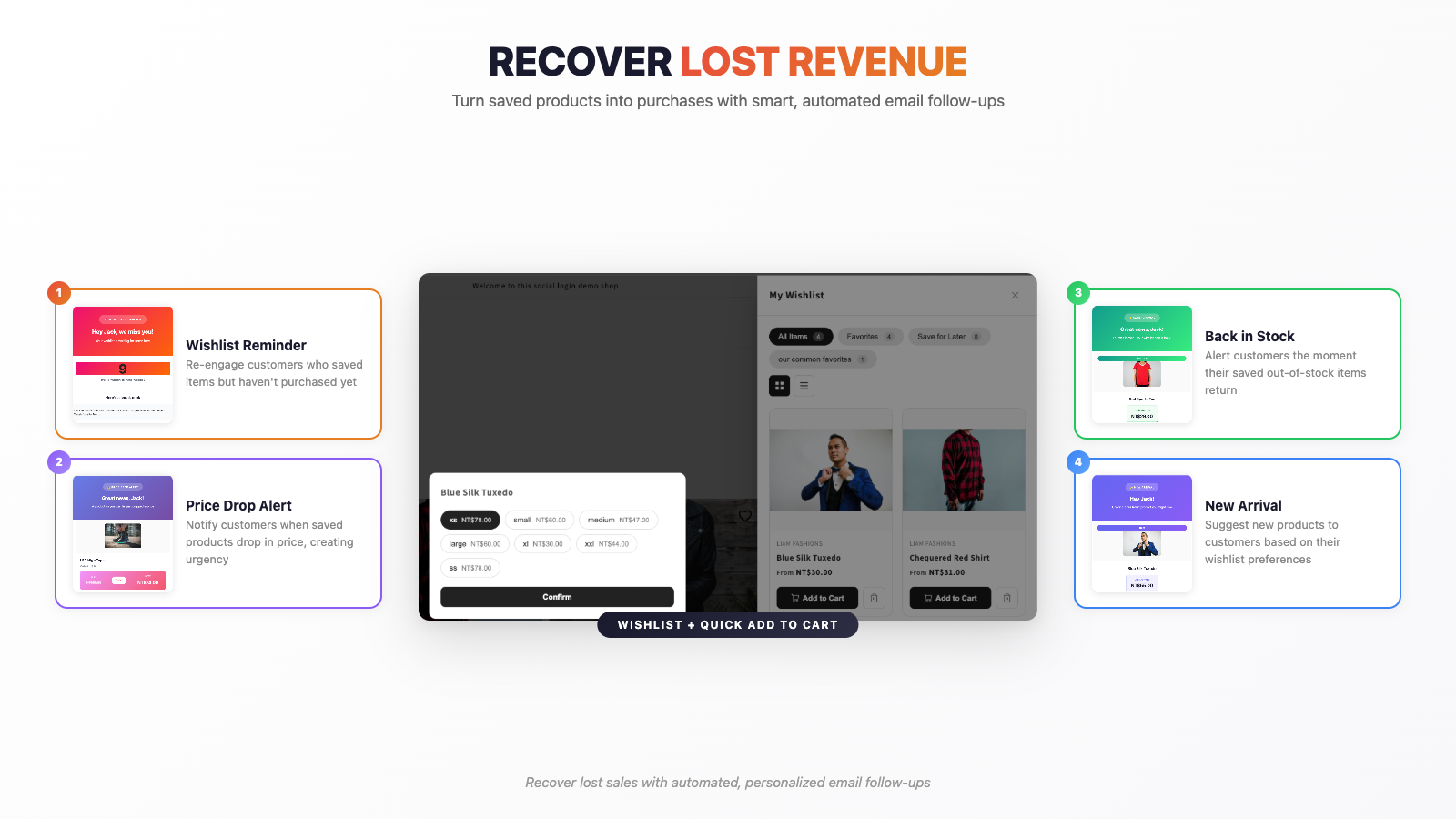
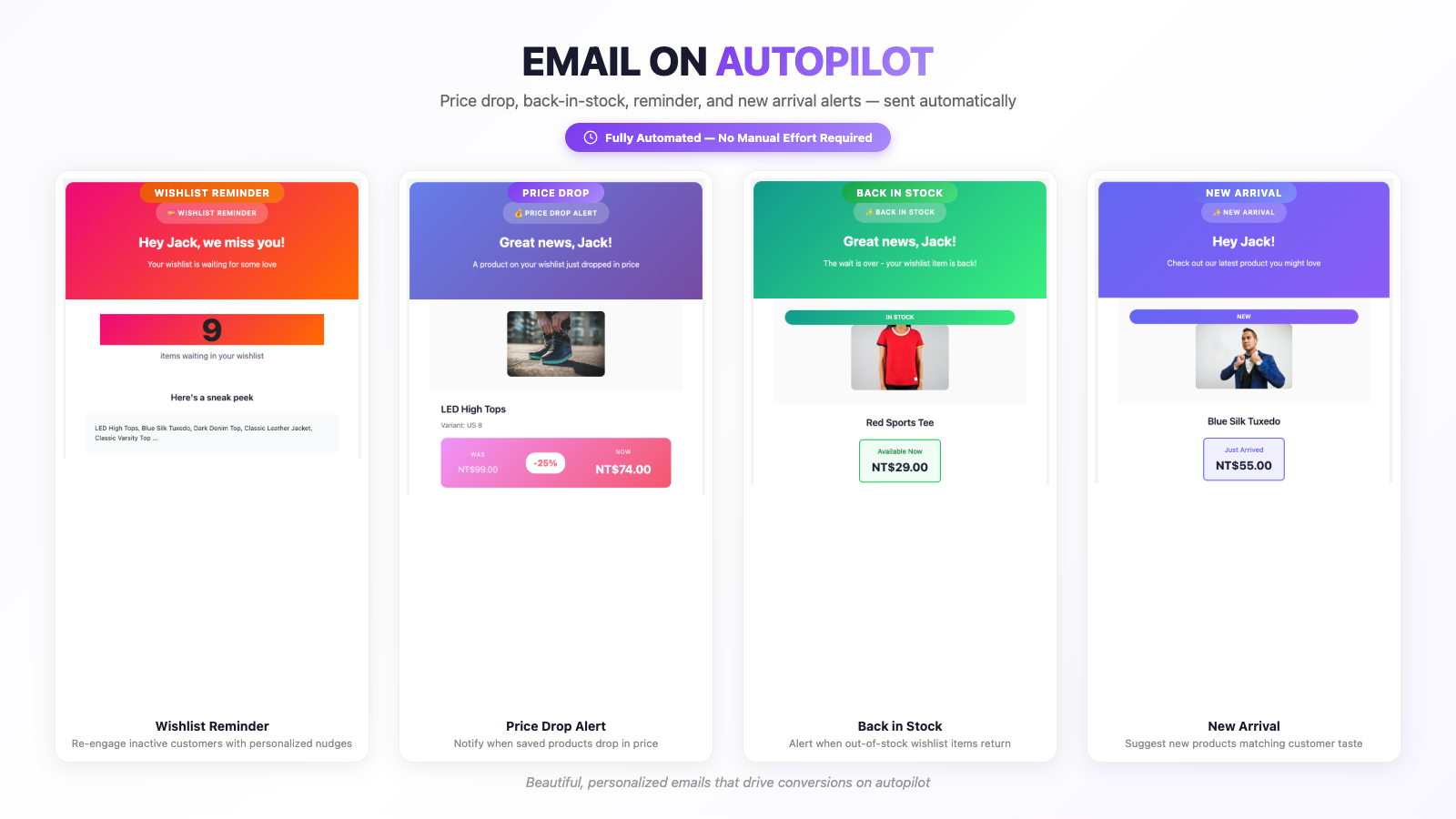
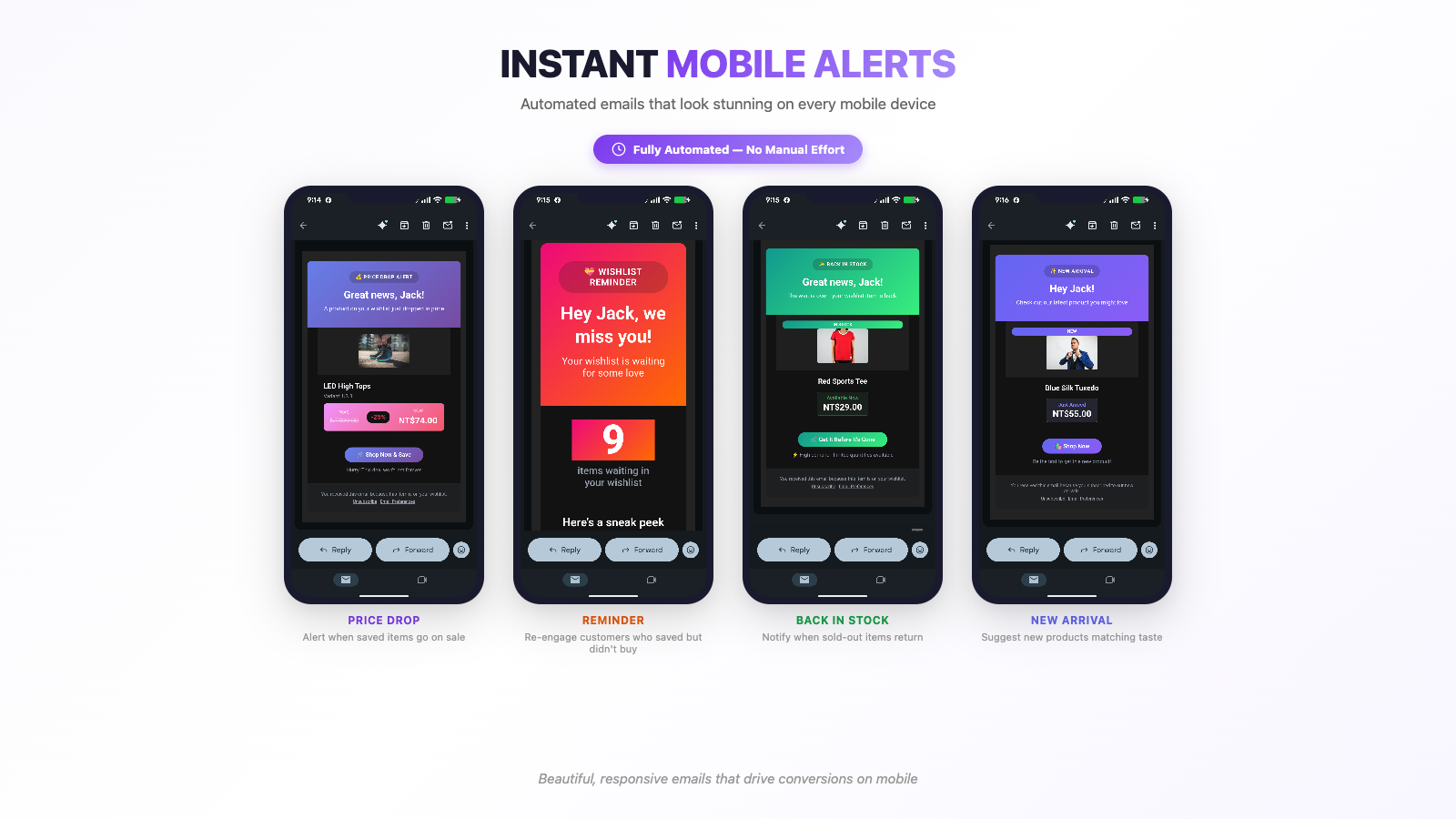
Turn abandoned interest into completed purchases. HIKO Wish Keeper monitors every wishlisted product and automatically sends personalized emails when something changes — a price drops, a sold-out item is restocked, or a customer hasn't visited in a while.
Every email template is fully customizable to match your brand identity. Set your own sending schedule, control frequency caps so customers aren't overwhelmed, and let the automation work around the clock. Merchants report significant revenue recovery from price drop alerts alone.
Social Sharing
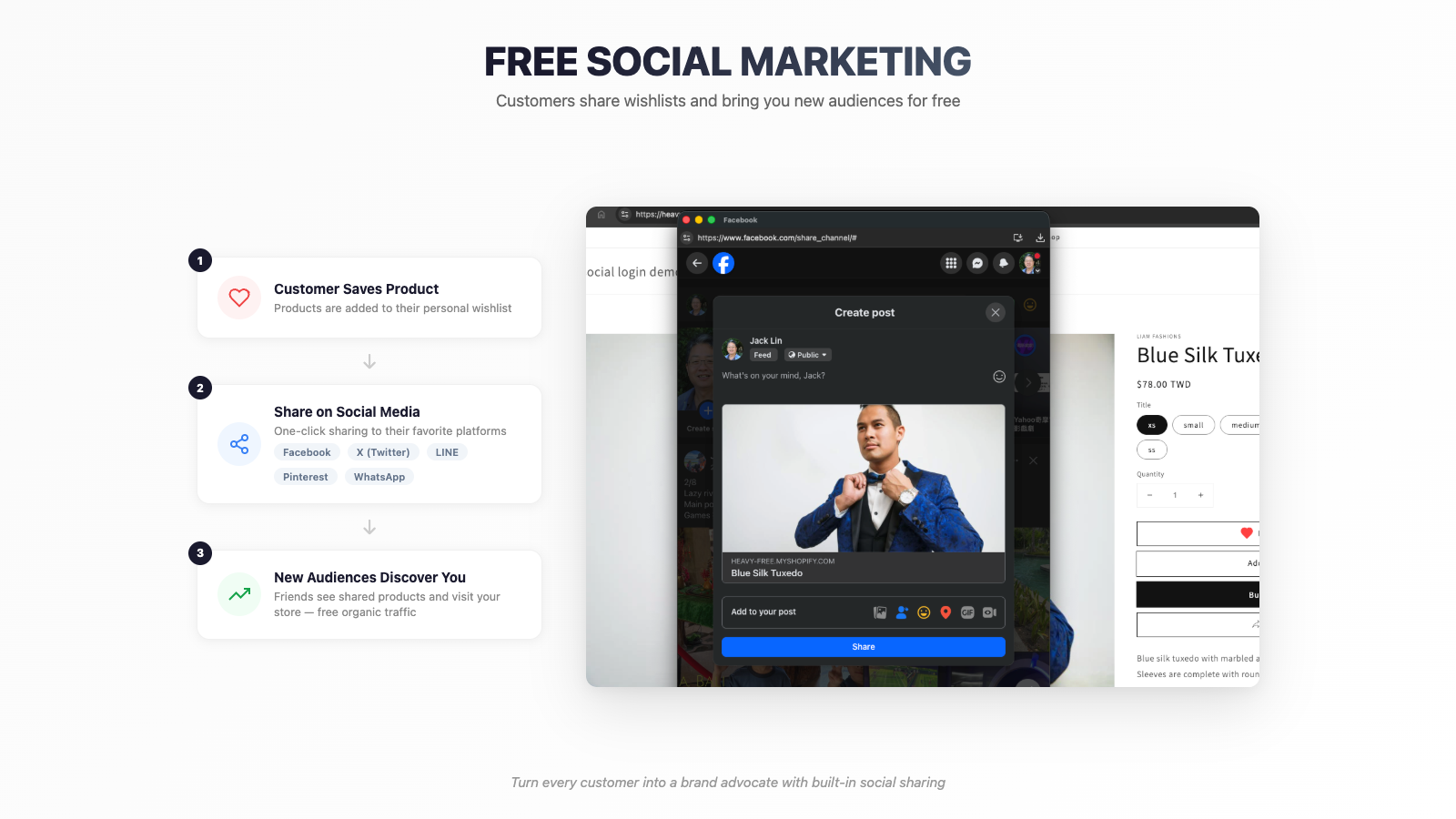
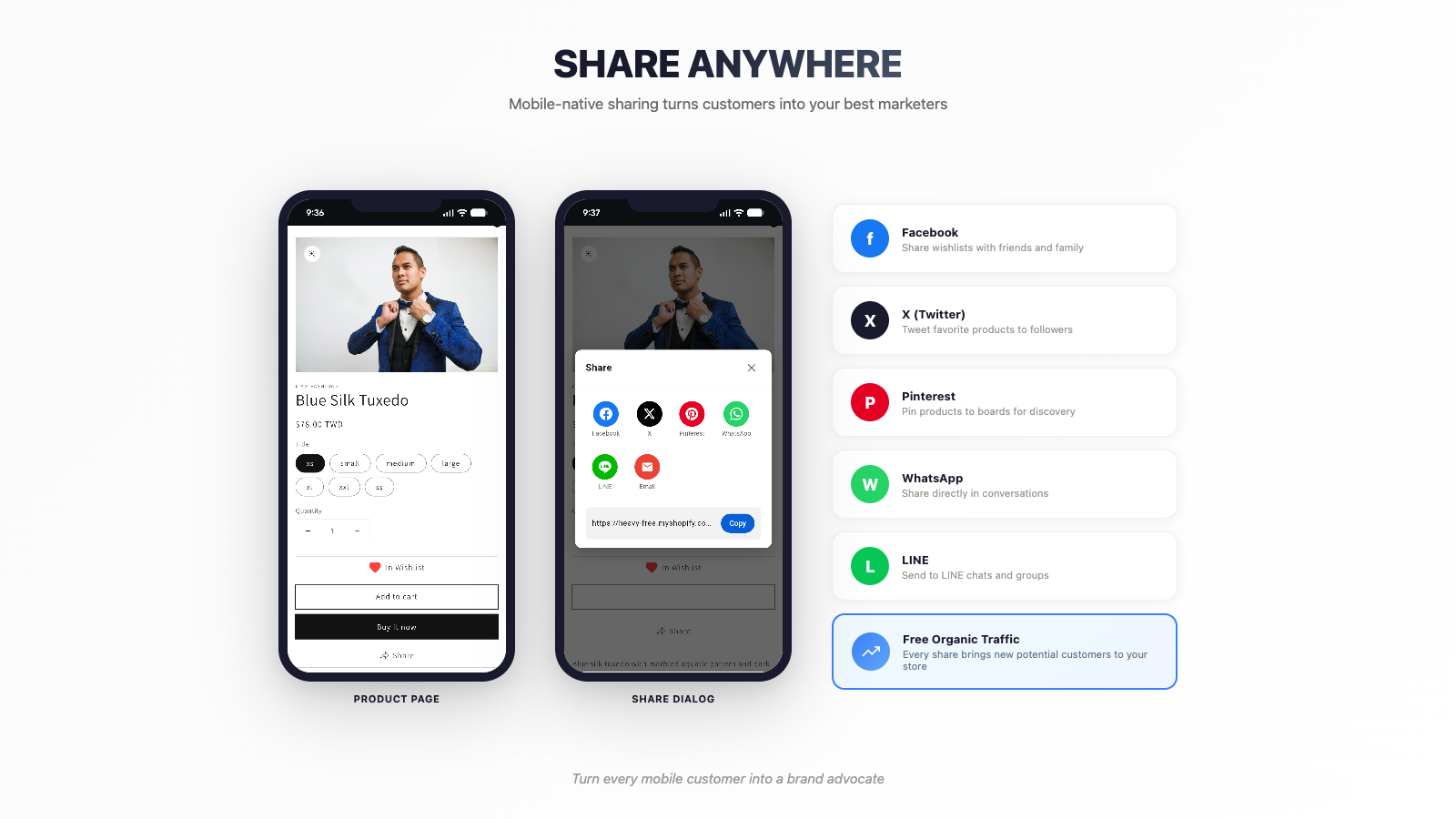
When customers share their wishlists, your products reach new audiences organically. HIKO Wish Keeper integrates with the platforms your customers already use — Facebook, X, Pinterest, WhatsApp, and LINE — so sharing feels natural, not forced.
Each shared link leads to a beautifully formatted wishlist page that showcases your products with images, prices, and direct links back to your store. It's word-of-mouth marketing at scale, powered by your customers' genuine interest in your products.
Analytics & Insights
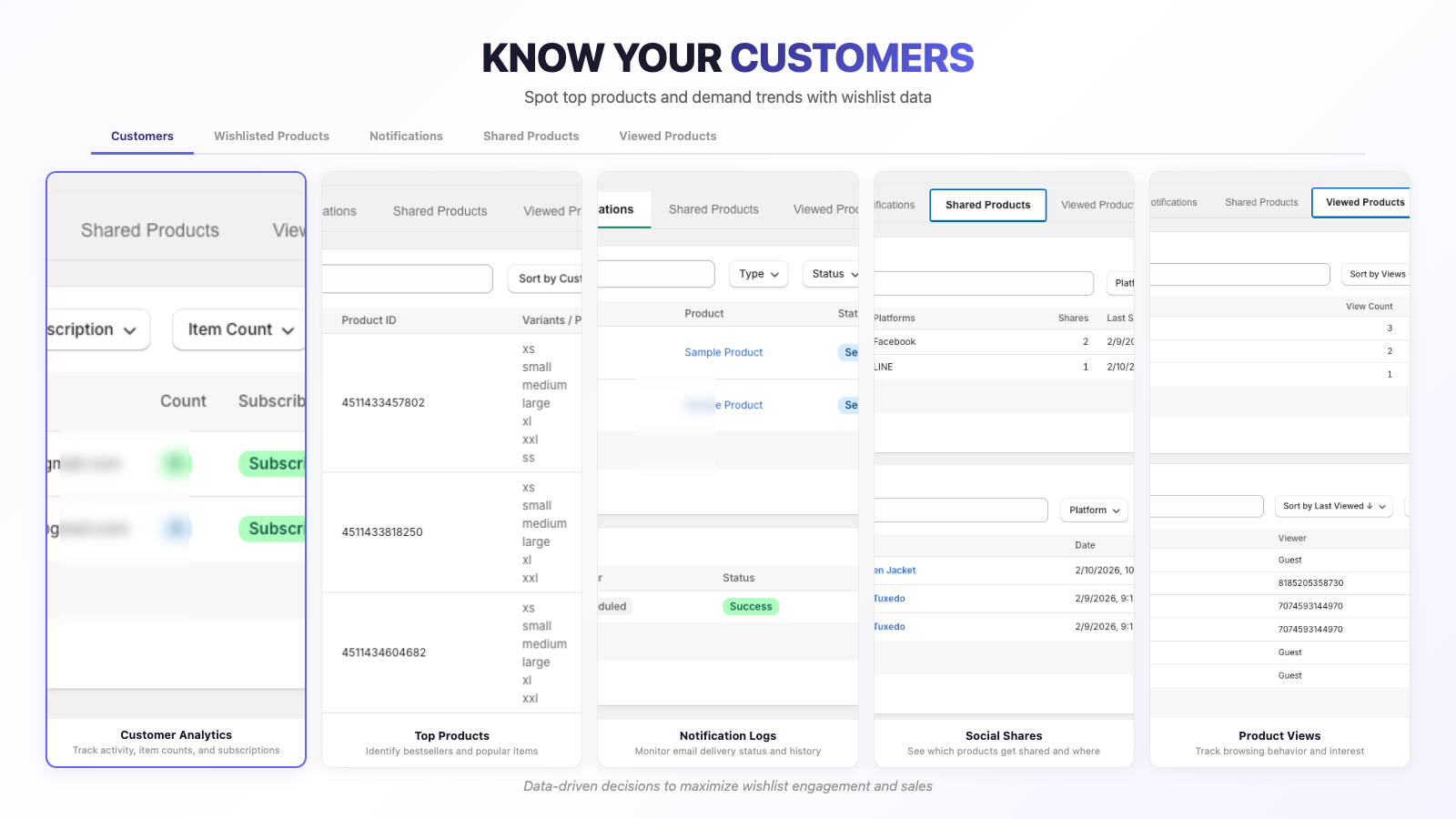
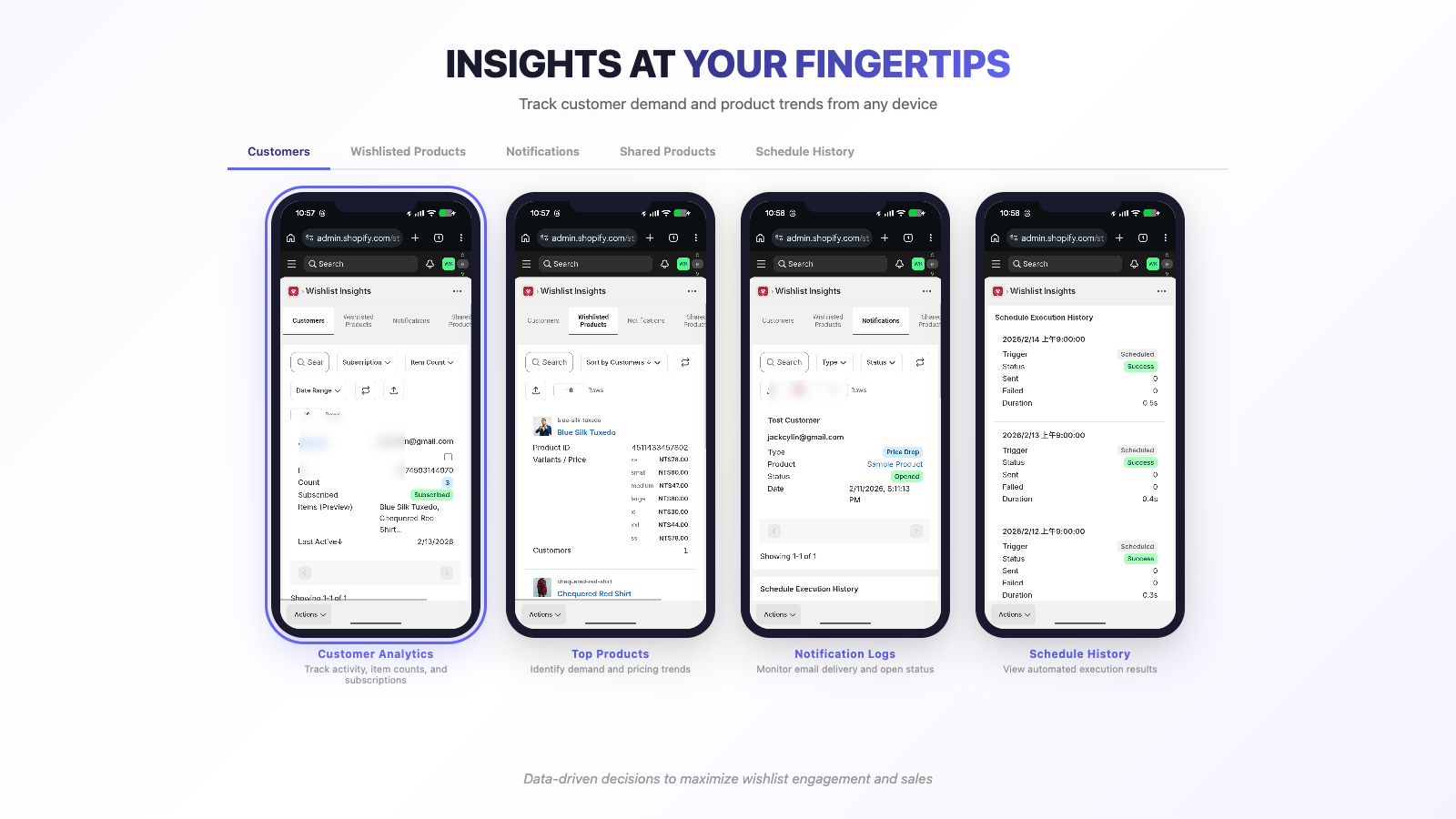
HIKO Wish Keeper's analytics dashboard gives you a clear picture of what your customers want. See which products are wishlisted most, identify trends before they peak, and understand the journey from wishlist to purchase.
Customer-level insights show who your most engaged shoppers are, how often they return, and what drives them to buy. Product-level data reveals demand signals that help you plan inventory, time promotions, and create targeted campaigns. Export everything for deeper analysis or integration with your existing tools.
Customization & Localization
Every store has its own personality, and HIKO Wish Keeper adapts to yours. Choose from multiple icon styles — hearts, stars, bookmarks, or custom icons — pick your colors, add hover animations, and decide exactly where and how the wishlist button appears on your pages.
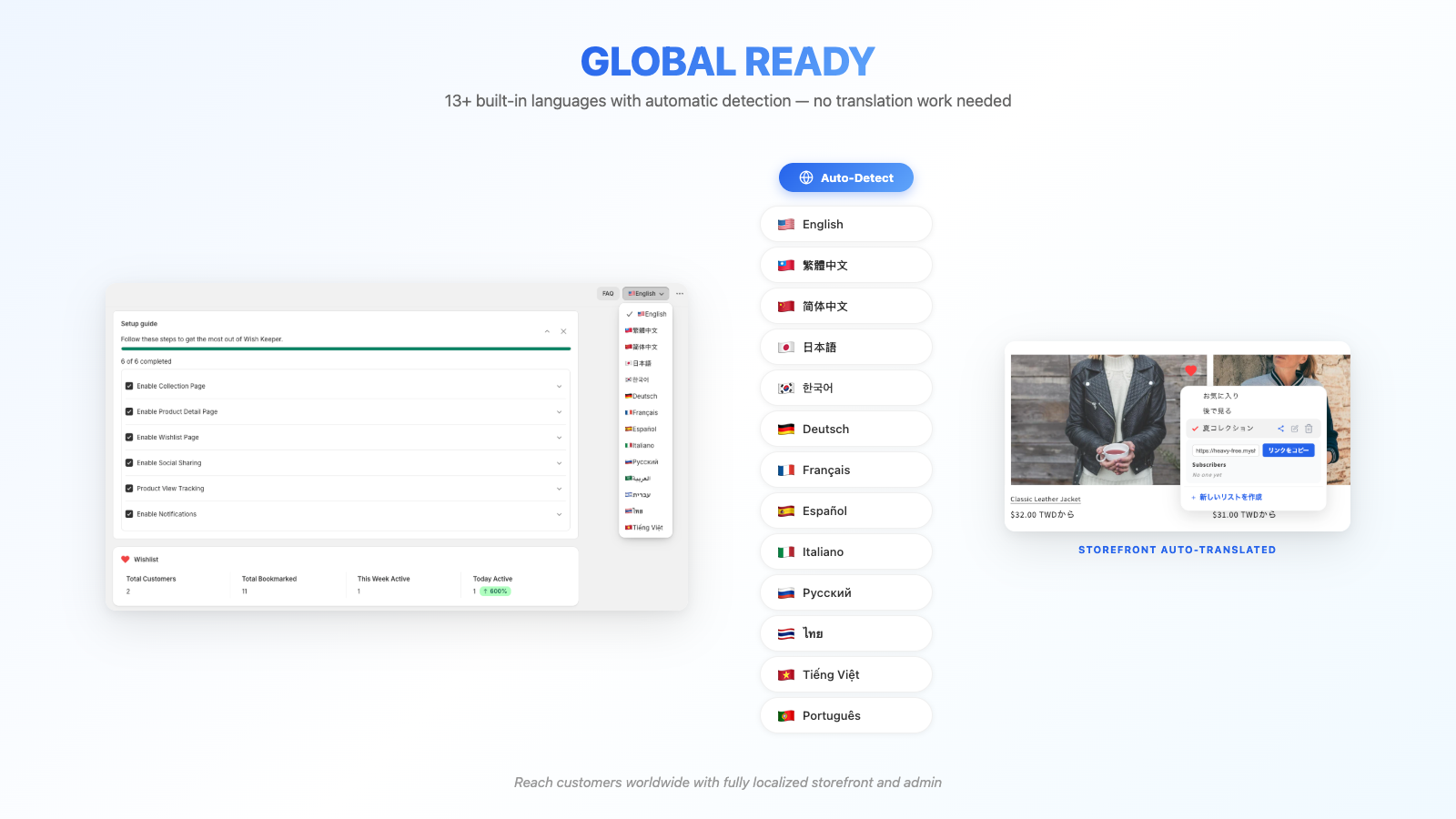
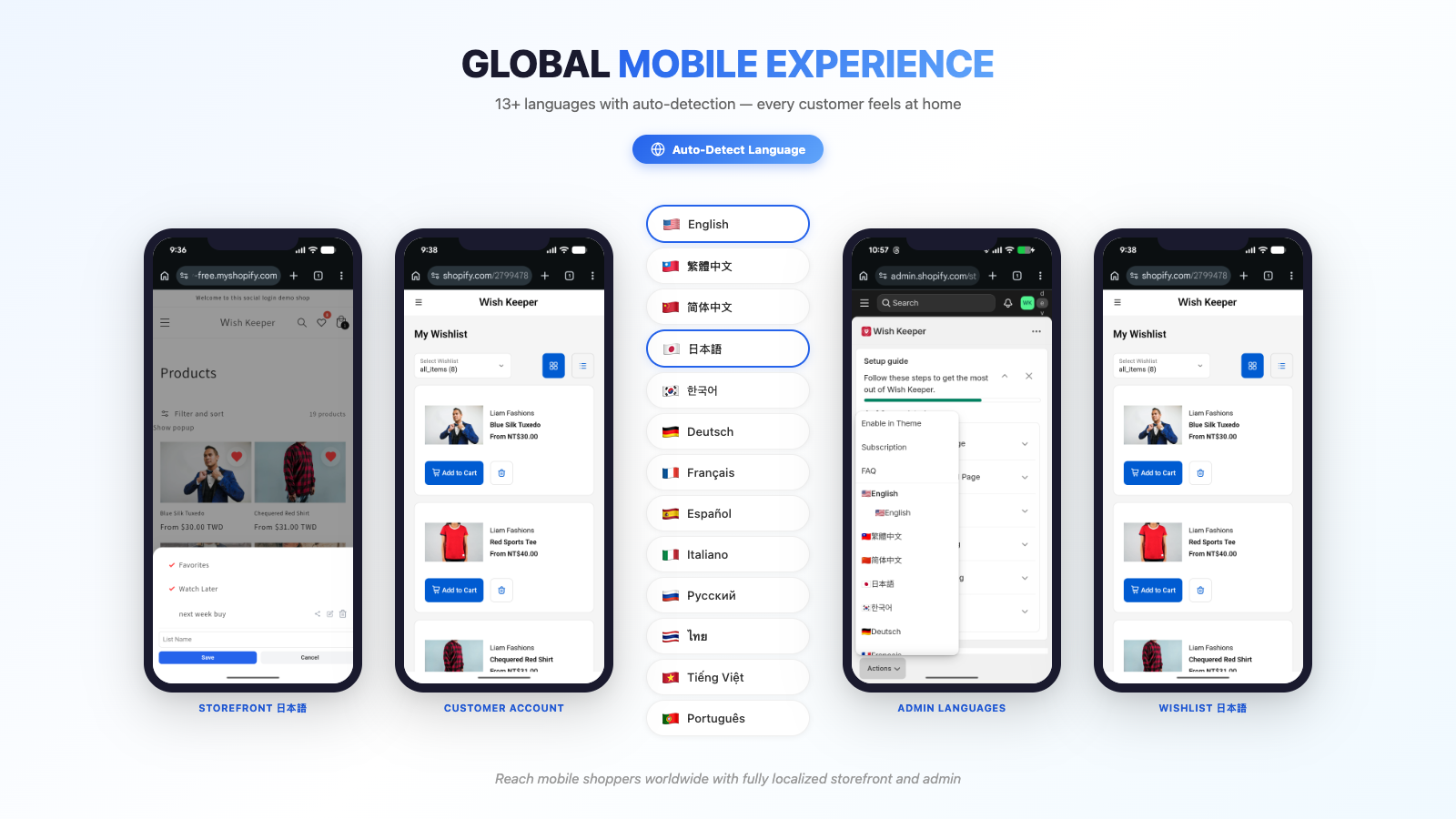
With built-in support for 15+ languages, your international customers see the wishlist experience in their own language automatically. No translation apps needed. From button labels to email content, everything localizes seamlessly. And because HIKO Wish Keeper is built for Online Store 2.0, setup is drag-and-drop through the theme editor — zero code required.
12 reasons to add HIKO Wish Keeper to your Shopify store today
Wishlist, orders, addresses, profile and draft orders — in one place on your storefront.
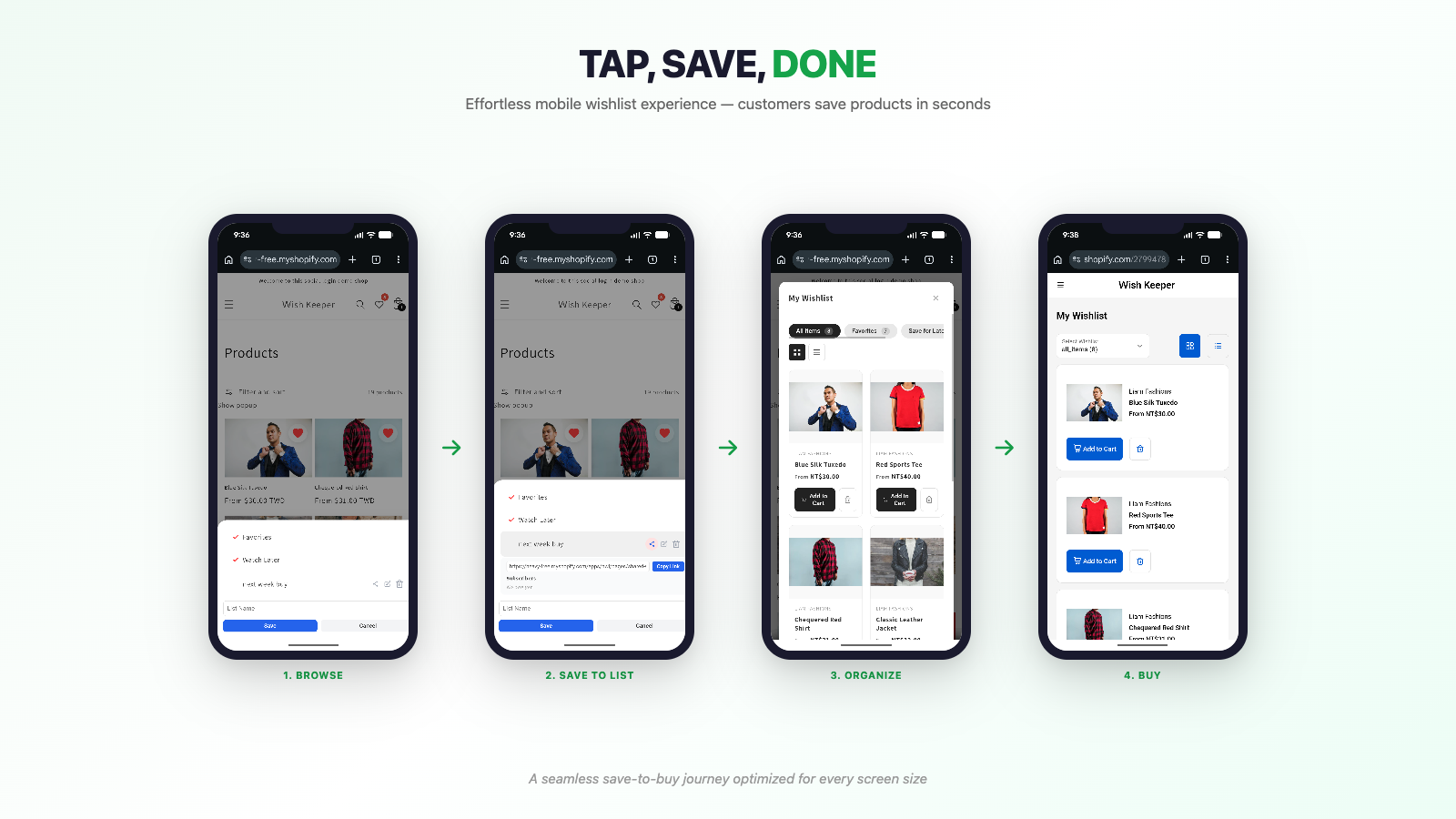
A heart on every product, as many lists as they like, and the exact variant chosen before anything is saved.
Price drops, back-in-stock, new arrivals and reminders go out on their own — customers choose what they get.
Build a draft order from what they saved, attach an exclusive discount, reserve the stock and send the invoice.
What is being saved, by how many customers, and what is still sitting there unbought.
Fifteen languages detected from the store, and every label, color and icon is yours to change.
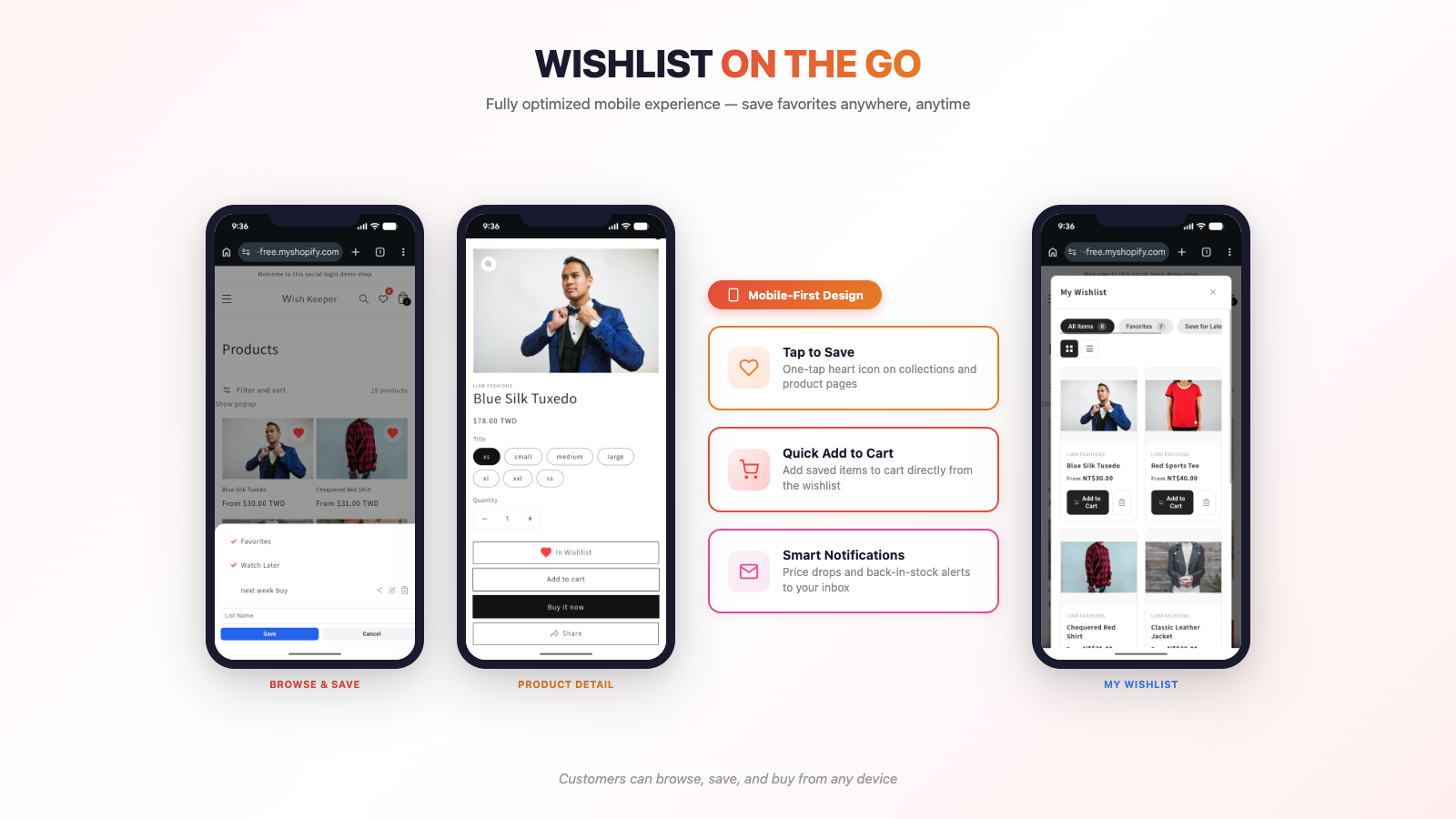
The same lists, the same items — whether they are browsing on the sofa or at a desk.
Customers pick the variant before the item is saved, so the list says “medium, blue” — not just “jacket”.
Wishlist, orders, addresses, profile and draft orders — stacked for the phone, in the order you set.
Send the draft order as an invoice. It lands in their inbox with the discount already applied.
Facebook, X, WhatsApp, LINE, email or a plain link — every share points back at your store.
Price drops, restocks, new arrivals and reminders land in their inbox — read on the phone, one tap from your store.
Start free and upgrade when you need more features
Perfect for getting started with wishlists
Unlock powerful email notifications and API access
Annual plan available at $62/year (save 26%)
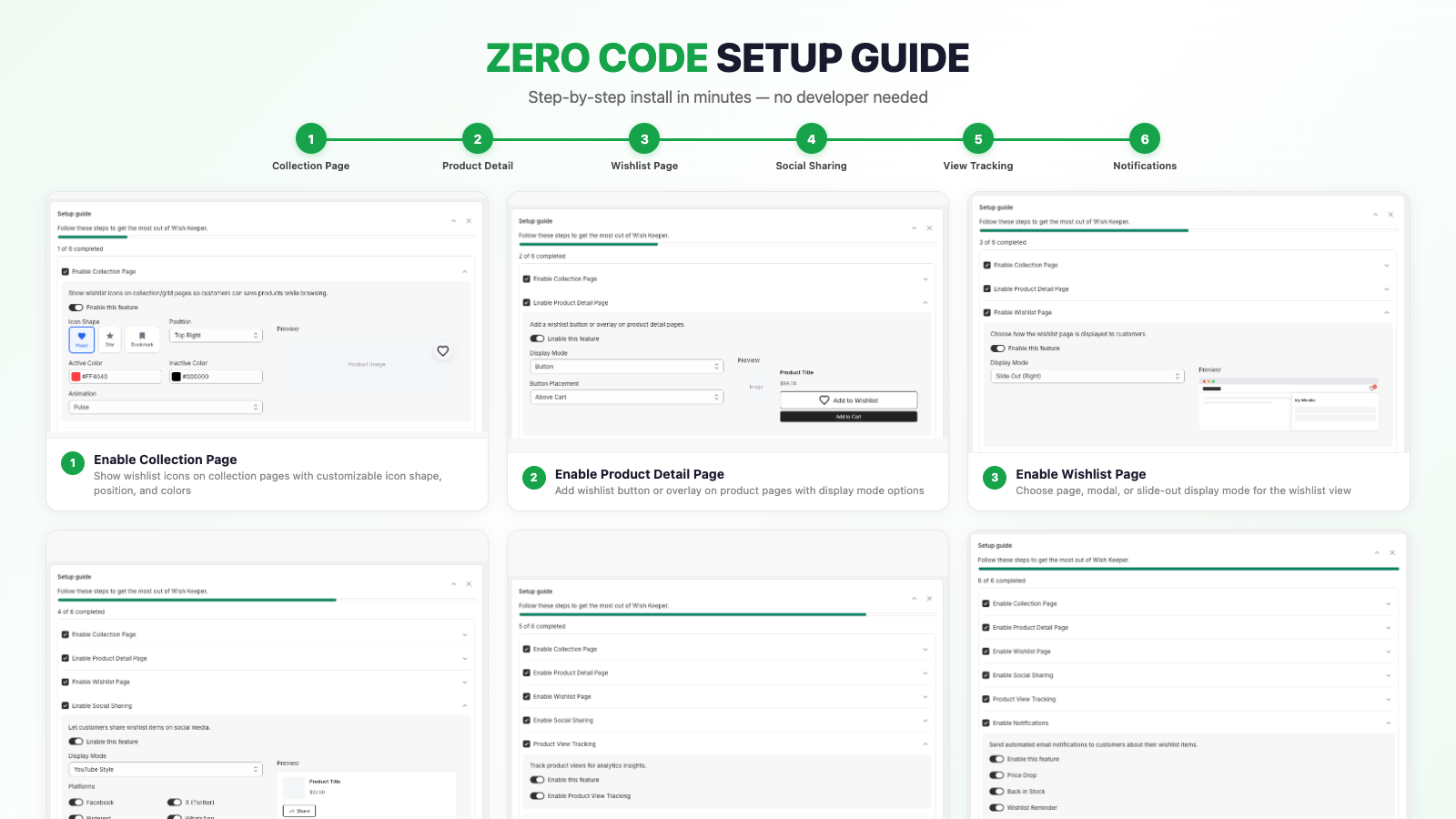
The wishlist requires two things: the Shopify app embed must be turned on in your theme, and the wishlist feature must be enabled in the app settings.
Step 1 — Activate the app embed
Step 2 — Enable the wishlist in app settings
Once both steps are done, the wishlist button appears automatically on your storefront — no theme code editing required.
The app embed is the single most common cause of "nothing shows up". Everything the app draws on your storefront — the wishlist button, the account page, the share page — is loaded by that one embed.
Yes. In the HIKO Wish Keeper app, go to Settings and enable 'Require Login'. When this is turned on, the wishlist does not load at all for guest visitors — no buttons appear.
Leave it off if you want guests to be able to save items. Guests keep their wishlist in their own browser, and it merges into their account the first time they sign in, so nothing they saved is lost.
The Insights page provides comprehensive analytics to help you understand customer behavior:
The account page is the single place on your storefront where a customer finds everything this app keeps for them. It lives at /apps/hwl/account and is built from tabs: their wishlist, and — once they sign in — their orders, addresses, profile details, notification preferences, and draft orders.
It is on by default. You can turn it off under Account Page > The account page in the app; while it is off the address stops working and nothing on your storefront links to it.
The account page is drawn by the app embed, the same one the wishlist button needs. If the embed is off, customers reach the page but see a short "still loading" notice instead of their account.
Both, and there is nothing to switch on. The app does not ask which version your store uses.
The reason is where the account page lives. It is a page on your own storefront at /apps/hwl/account, drawn by your theme — not a page inside Shopify's hosted account area. It reads the signed-in customer, their orders and their addresses through your theme, exactly the way any other template does, and those work the same under both versions.
Signing in works on both as well. The sign-in link the app hands out goes to /customer_authentication/login, which Shopify routes to the right sign-in screen for whichever version your store is on, and then returns the customer to where they started.
One difference, and it is Shopify's rather than ours. On new customer accounts, Shopify's hosted account pages cannot show anything from a theme app, so there is no entry point for the wishlist in there. That is why the app sends the account icon in your theme header to the account page instead. On legacy customer accounts that icon keeps going to Shopify's own account pages, which still work normally — customers reach the account page from the heart icon or any link you add.
Go to Account Page > Tabs. Each tab has its own switch, its own icon, and you can drag the order with the up and down arrows — the order you set is the order customers see.
The tabs are Profile, Addresses, Wishlist, Orders, Draft Orders and Notifications. All of them are on by default except Draft Orders and Notifications, which need a paid plan.
Two rules worth knowing:
Everything is under Account Page, with a live preview beside it that updates as you change things:
Yes, on a paid plan. Go to Account Page > Tabs, expand Profile, and add a field. Each one can be a text box, a dropdown with your own choices, a date, or a checkbox.
Answers are stored on the customer in Shopify as metafields, so you can use them in Shopify Flow, segments, or your theme. The Where your fields live panel on that page shows the exact namespace and key for each one.
Three things to know before you add one:
The heart in your store header goes to wherever that customer can actually see their list:
If you have set the wishlist to open as a pop-up or slide-out instead of a page, the heart keeps doing that and does not navigate anywhere.
Under Account Page > After sign-in you choose one of three: the account page (the default), your home page, or a page you name yourself.
If you choose your own page, enter a path that starts with a slash, like /pages/members. Full web addresses are rejected — the sign-in redirect only accepts a path inside your own store, and a rejected value quietly falls back to the account page.
This applies wherever the customer signs in from, including the account icon in your theme header.
HIKO Wish Keeper has one paid plan, billed monthly or annually:
The paid plan includes a 7-day free trial. Upgrade any time from the Upgrade page.
No. Shopify automatically prorates plan changes and credits the unused portion of your current plan against the new one. You only pay the difference.
When switching from monthly to annual, the remaining days on your monthly cycle are credited toward the annual fee. For example, if you switch halfway through the month, the unused half is deducted from the annual charge.
This is handled entirely by Shopify billing — no action needed on your part.
When your 7-day free trial ends, Shopify will send you an email asking you to approve the recurring charge. You will not be charged automatically — Shopify requires your explicit confirmation before any payment is processed.
If you approve, your subscription continues with no interruption. If you don't approve within 2 days, your plan drops to Free and paid features become unavailable until you re-subscribe.
You can re-subscribe later from the Upgrade page. No data is lost when your plan is downgraded — your wishlists, custom fields and settings are all still there.
You have full control over how the wishlist button looks on your store. Customize every aspect from the Settings page:
Yes! You can position the wishlist button exactly where you want it on both collection and product pages:
The app ships translated into 15 languages: English, Traditional Chinese, Simplified Chinese, Japanese, Korean, German, French, Spanish, Italian, Portuguese, Russian, Vietnamese, Thai, Arabic and Hebrew. Customers see the one that matches their browser, and you do not have to do anything to get them.
The Translations page is for changing the wording, not for adding the languages:
You can add any language as a custom translation:
ko for Korean, de for German)Your custom translations will be used whenever a customer's browser language matches the code you entered. You have full control over every term shown to customers.
Customers can share any custom wishlist with friends and family via a unique link:
Each custom list gets a unique share token automatically. The default 'Favorites' and 'Watch Later' lists can also be shared.
Yes! When someone opens a shared wishlist link, they can subscribe to it:
Customers can share their wishlisted products on social media platforms:
Enable social sharing in Settings > Social Share. Choose which platforms to display and customize the share message template.
Automatically notify customers when products in their wishlist go on sale:
Back-in-stock alerts only fire when an item goes from out of stock to in stock. The very first time the app records a product's availability it does not send anything — otherwise every customer would get an alert the day you install.
Configure your email provider to start sending wishlist notifications to customers:
We recommend Resend for the easiest setup. Get a free API key at resend.com
Yes! Create beautiful, branded emails that match your store's style:
Use the AI Assistance feature to quickly generate professional email templates!
Draft orders let you create orders on behalf of customers from their wishlisted items. This is a paid-plan feature:
On the account page, in the Draft Orders tab. Turn it on under Account Page > Tabs — it is off until you do, because it needs a paid plan.
Customers see every invoice you have sent them that is still waiting to be paid, with a link to pay it and a button to cancel. The invoice emails you send also link straight there.
Earlier versions of the app offered theme blocks for this that you added by hand in the theme editor. Those are gone — the account page tab replaces them, and there is nothing to add to your theme.
Create draft orders from the Draft Orders page in the HIKO Wish Keeper app:
The customer receives an email with a checkout link to complete their purchase. Track all order statuses (draft, invoice sent, opened, clicked, completed) from the Draft Orders page.
Draft orders require the Professional plan ($6.99/month or $62/year).
If the wishlist button doesn't appear, try these troubleshooting steps:
The account page is drawn by the app embed. If customers see a short notice saying the page is still loading, the embed is off:
If the page returns "not found" instead, the account page itself is switched off — turn it back on under Account Page > The account page.
If notification emails aren't being delivered, check these common issues:
We're here to help! Here's how to get assistance:
Include your API key in the Authorization header as a Bearer token: Authorization: Bearer your_api_key. Generate your API key from the API Integration page.
You can use either the numeric ID (e.g., 1234567890) or the full Shopify GID format (e.g., gid://shopify/Customer/1234567890). Both formats are accepted by all API endpoints.
The API uses standard HTTP status codes:
List endpoints accept page and limit query parameters. The response includes a pagination object with the current page, total pages, and total record count so you can walk through large result sets.
Yes. Configure a webhook URL on the API Integration page and the app will POST to it when wishlist events happen, so you do not have to poll.
Start turning wishlist browsers into loyal buyers today. Free plan available.
Get HIKO Wish Keeper on Shopify