Đăng nhập tài khoản khách hàng hiện đại cho cửa hàng Shopify Plus.
Xem trước trên công cụ tìm kiếm
HIKO Social Login Plus mang hơn 17 phương thức đăng nhập mạng xã hội, Google One Tap, OTP qua email và passkey sinh trắc học đến tài khoản khách hàng mới của Shopify Plus. Hỗ trợ headless, ứng dụng di động, webhook và đồng bộ Klaviyo.
HIKO Social Login Plus cung cấp đăng nhập tài khoản khách hàng hiện đại dành riêng cho cửa hàng Plus, hỗ trợ đầy đủ giao diện headless và ứng dụng di động. Giảm rào cản đăng nhập và tăng tỷ lệ chuyển đổi nhờ truy cập tức thì qua hơn 17 kênh mạng xã hội (WhatsApp, LINE, Apple, Kakao), Google One Tap, hoặc OTP qua email không cần mật khẩu kèm passkey sinh trắc học. Đồng bộ hồ sơ sang Klaviyo mượt mà và mở rộng quy mô với API mạnh mẽ, webhook, tùy biến linh hoạt cùng 15 ngôn ngữ.
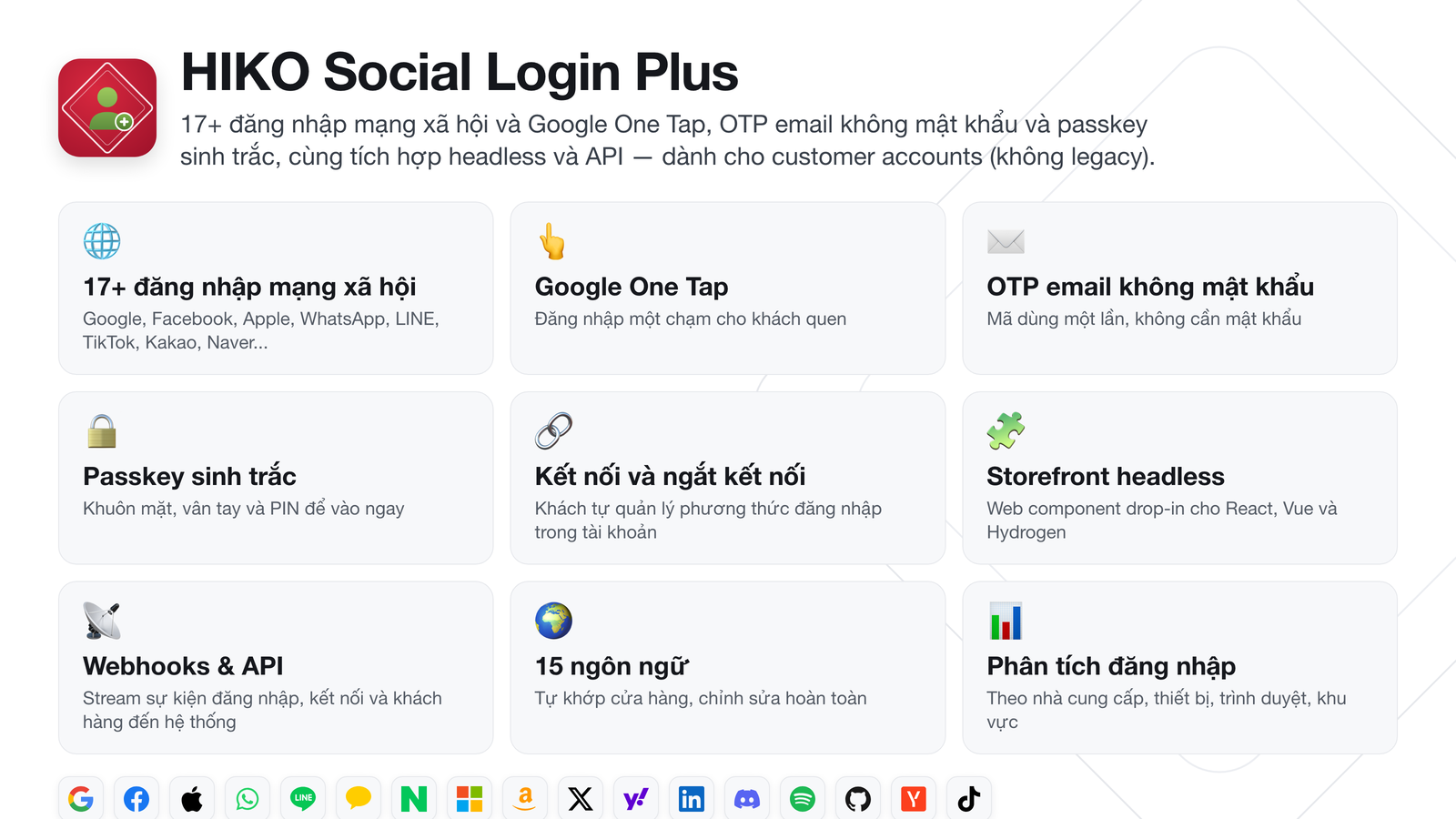
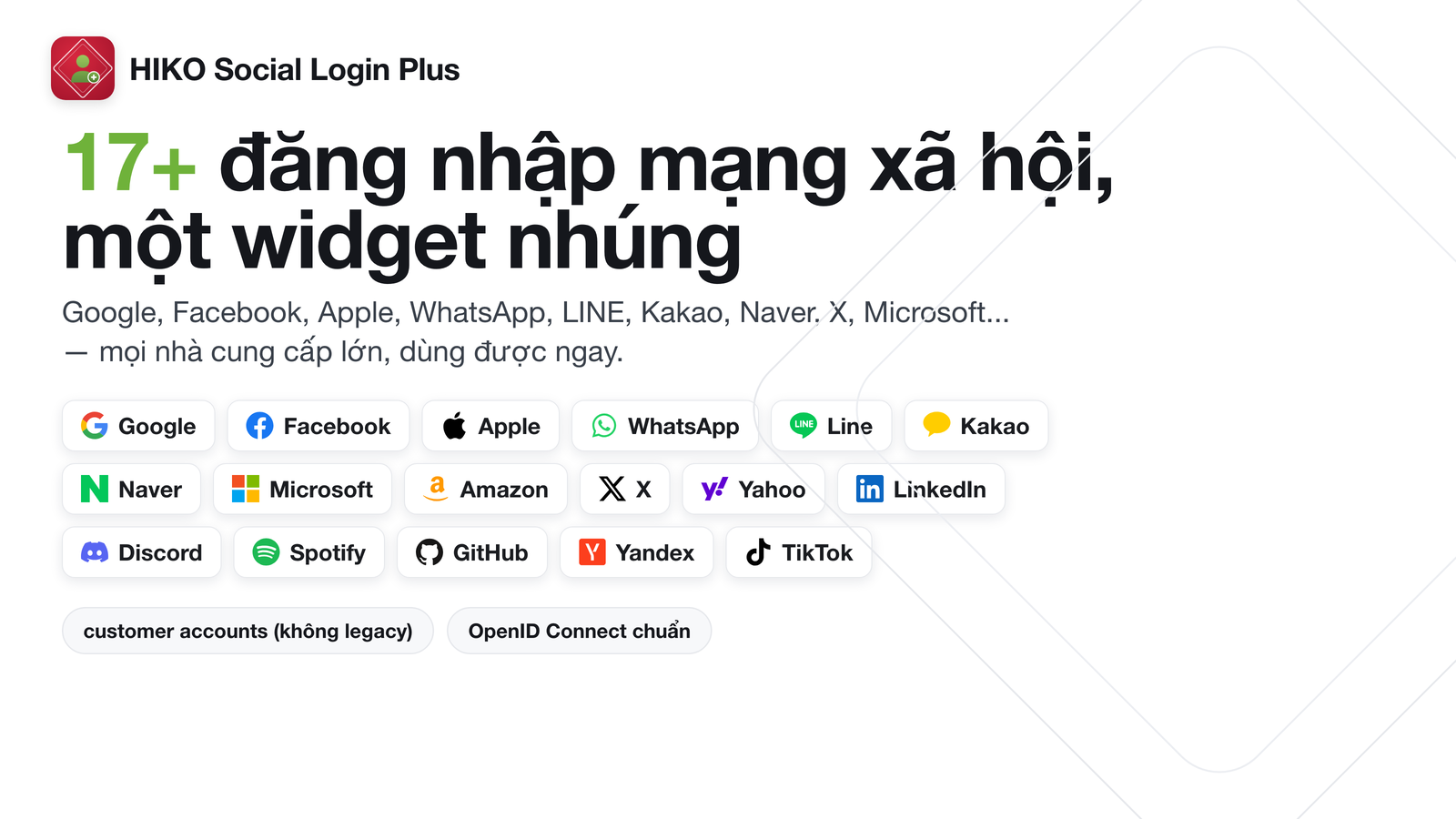
Mọi cách đăng nhập khách hàng ưa thích, gói gọn trong một widget.
Đăng nhập mạng xã hội
Mỗi mật khẩu bạn bắt khách tạo là một cơ hội để mất họ. HIKO Social Login Plus gom hơn 17 nhà cung cấp mạng xã hội vào một cửa sổ đăng nhập gọn gàng, để khách dùng tài khoản họ vốn đã tin tưởng — Google, Facebook, Apple, WhatsApp, LINE, Kakao, Naver và nhiều nữa.
Ứng dụng dựa trên chuẩn OpenID Connect, nên bạn có thể dùng client ID và secret OAuth của riêng mình cho từng nhà cung cấp. Không bị ràng buộc, và thương hiệu của bạn hiển thị trên màn hình cấp quyền.
Quay lại tức thì
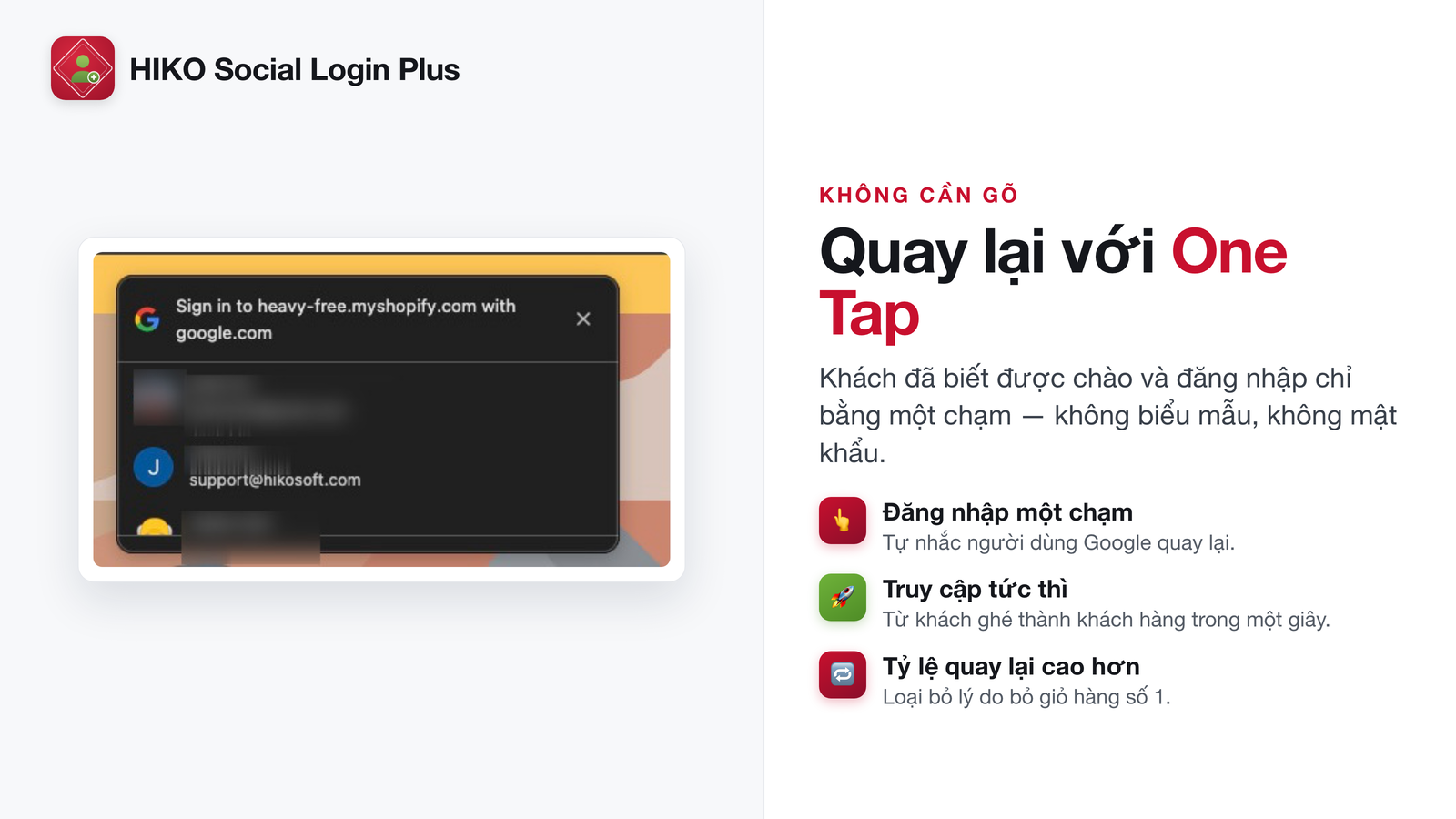
Hộp thoại Google One Tap tự động hiện ra với khách chưa đăng nhập từng dùng Google trước đó. Không phải gõ, không chuyển hướng, không có trang đăng nhập riêng — họ trở lại tài khoản trước khi kịp mất dấu trang đang xem.
Với khách quay lại, khác biệt giữa một cú chạm và một mật khẩu bị quên thường chính là khác biệt giữa đơn hàng hoàn tất và giỏ hàng bị bỏ lại.
Không mật khẩu
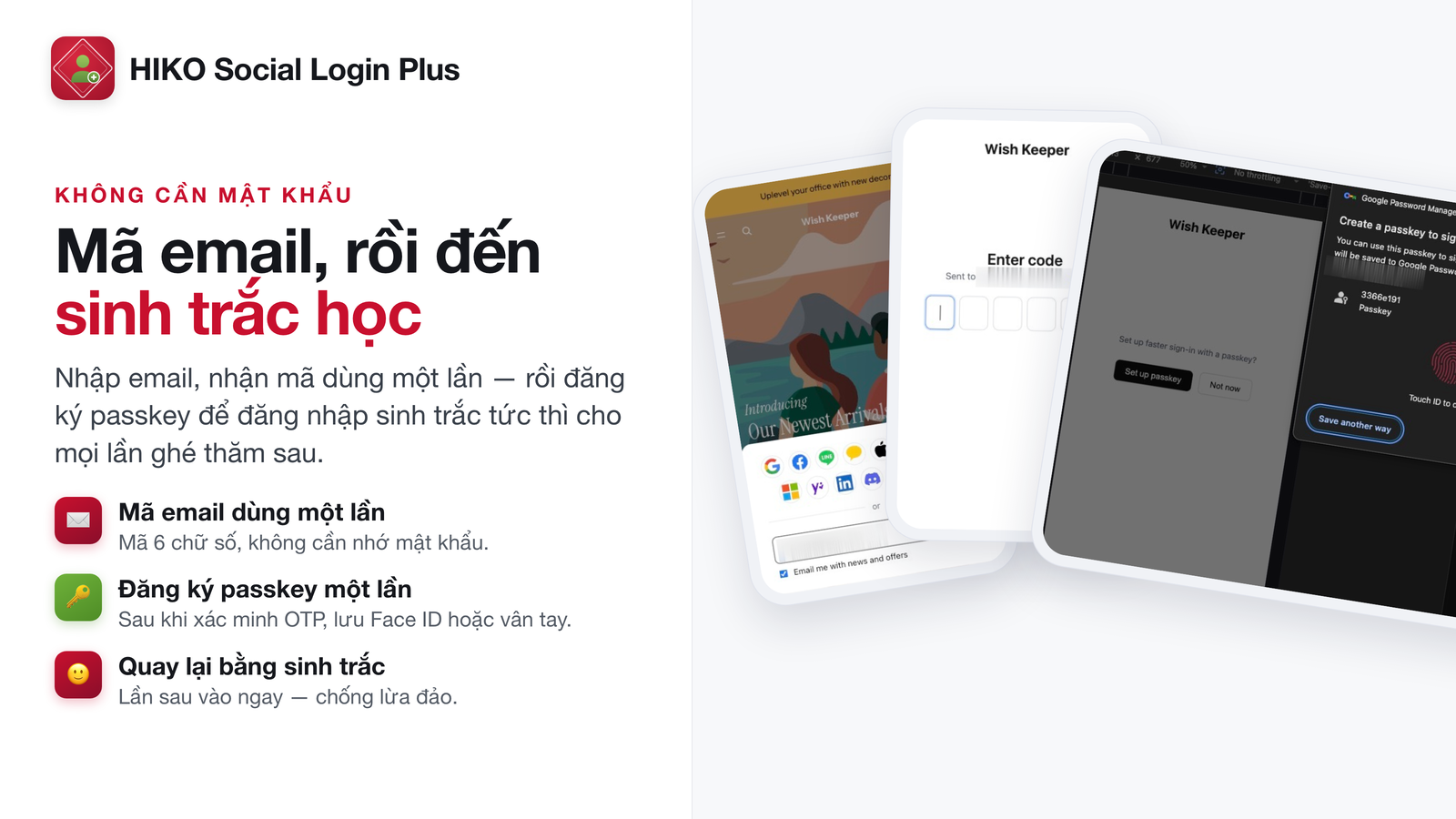
Khách không có tài khoản mạng xã hội sẽ nhận mã dùng một lần qua email và đăng nhập ngay. Không phải nhớ, không phải đặt lại, và bạn cũng không phải lưu mật khẩu nào.
Sau khi xác minh, khách có thể bật passkey sinh trắc học — vân tay, khuôn mặt hoặc mã PIN — để lần ghé sau chỉ còn một chạm. Tiện lợi như mật khẩu đã lưu mà không mang theo rủi ro.
Headless và di động
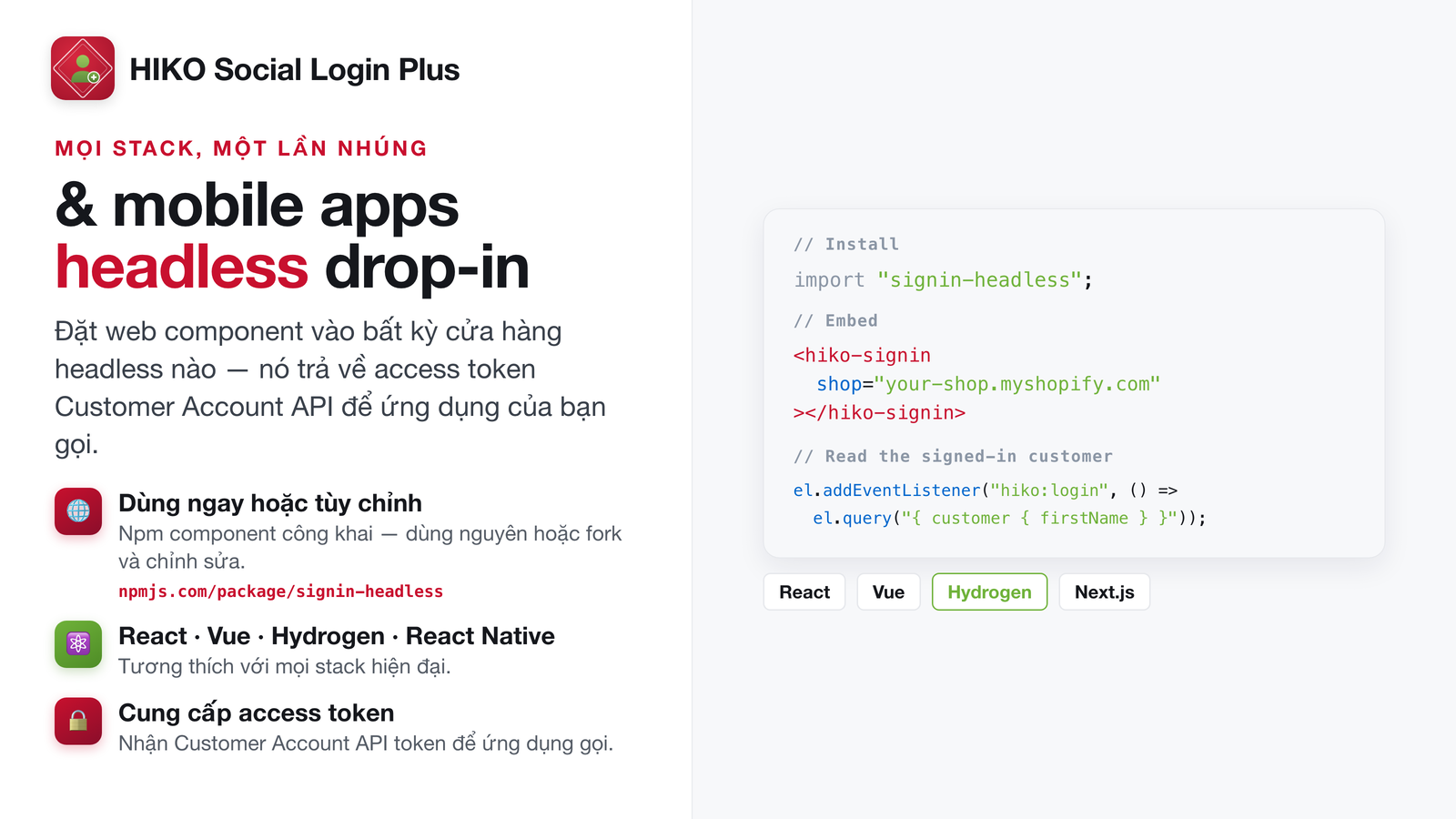
Giao diện headless hay ứng dụng di động gốc không có nghĩa là phải viết lại phần xác thực từ đầu. Chỉ cần gắn một web component cho React, Vue hoặc Hydrogen là có ngay trải nghiệm đăng nhập giống hệt theme Shopify của bạn.
Webhook và API chuyển sự kiện đăng nhập đến bất cứ nơi nào bạn cần, còn hồ sơ khách hàng đồng bộ thẳng sang Klaviyo để marketing có dữ liệu ngay khi ai đó đăng ký.
Phân tích
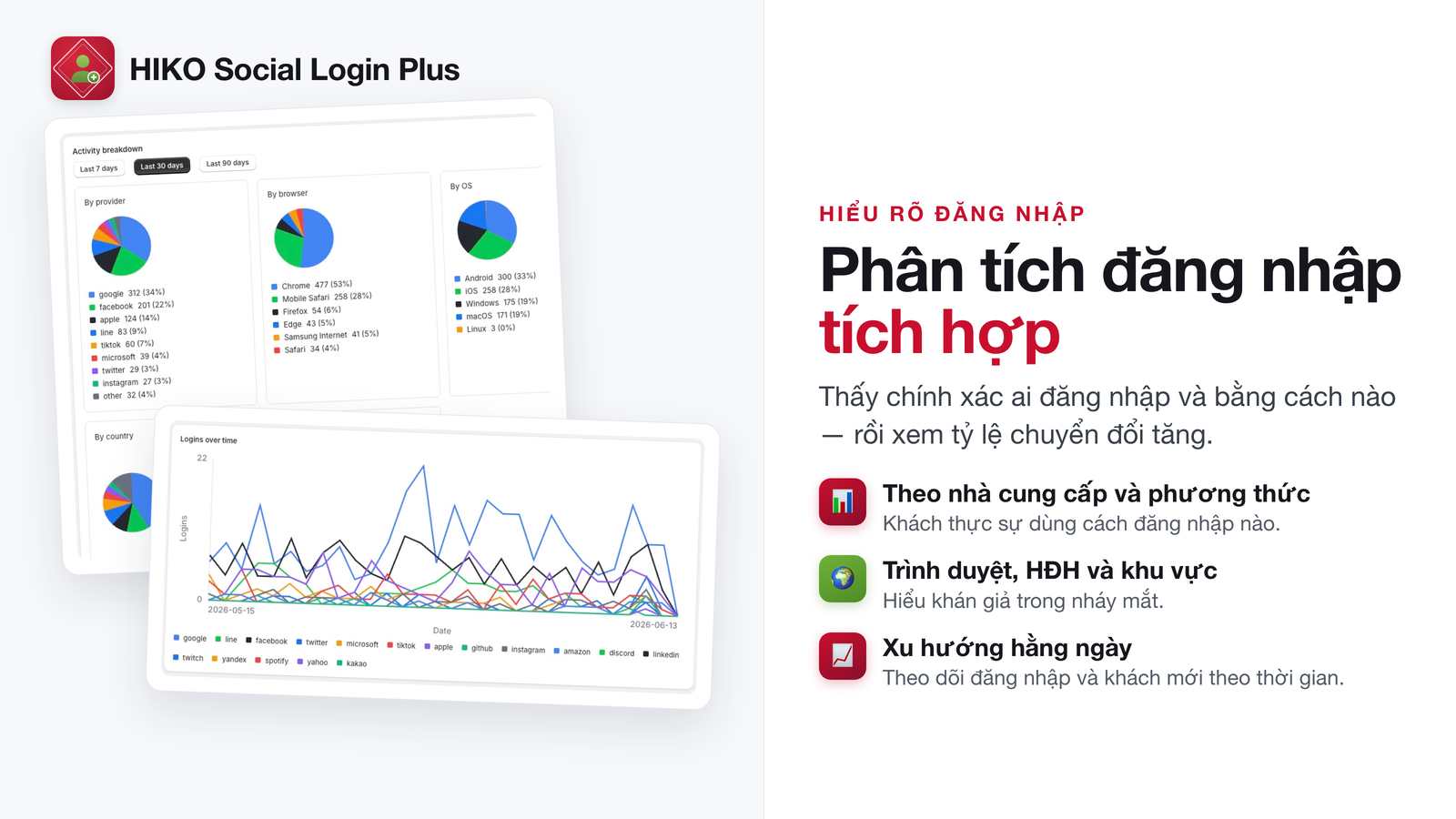
Đoán xem phương thức đăng nhập nào quan trọng là một cái giá đắt — bạn vừa duy trì những nhà cung cấp không ai dùng, vừa bỏ lỡ đúng cái thị trường của bạn mong đợi. Phân tích đăng nhập bóc tách dữ liệu theo nhà cung cấp, thiết bị, trình duyệt và khu vực.
Tắt thứ không ai dùng, thêm thứ khách liên tục yêu cầu, và chứng minh tác động lên tỷ lệ chuyển đổi bằng con số thật.
Biến nó thành của bạn
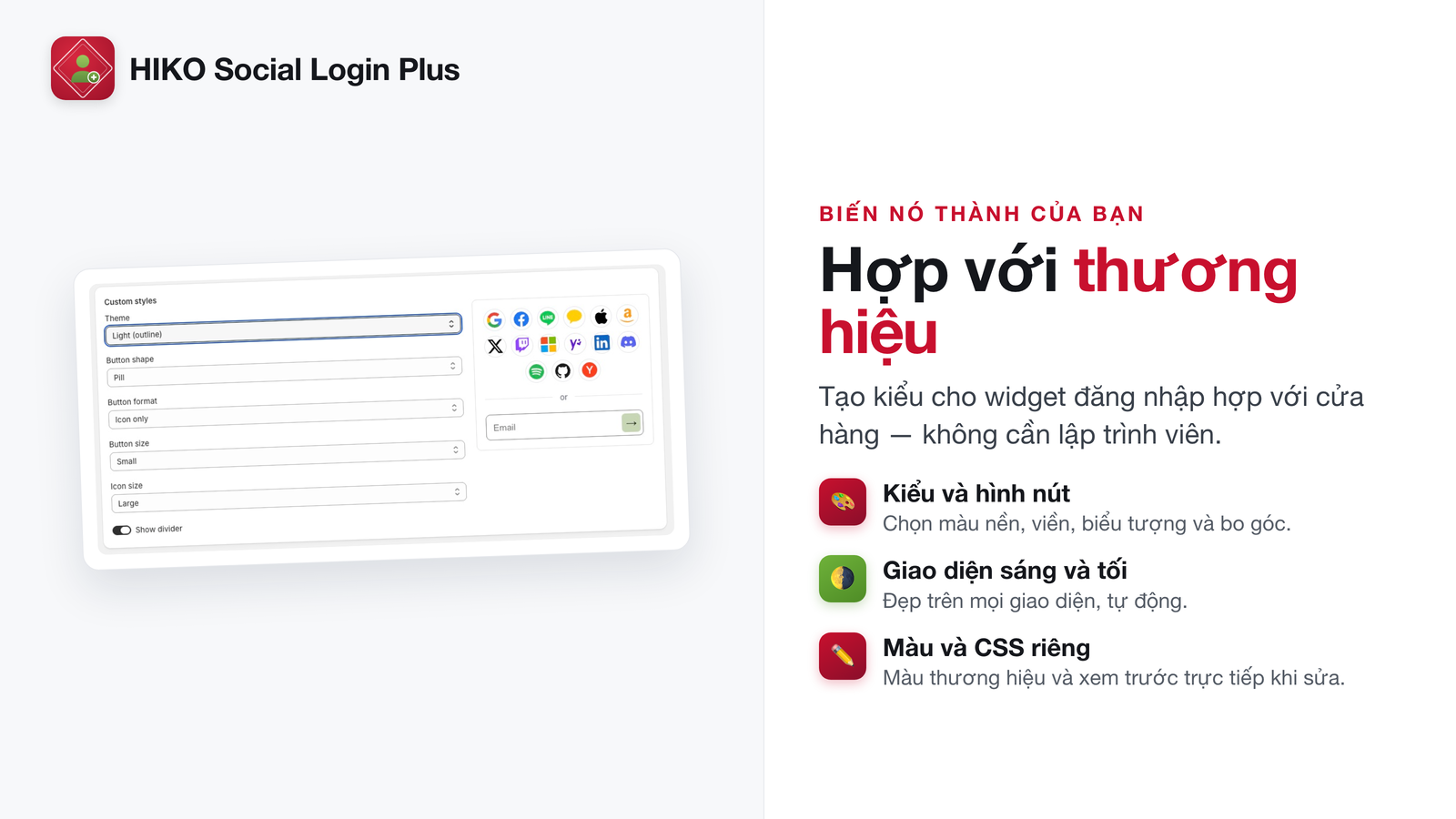
Widget đăng nhập là màn hình đầu tiên nhiều khách hàng nhìn thấy về thương hiệu của bạn, nên nó không nên trông giống của người khác. Tùy chỉnh kiểu nút, giao diện và màu sắc cho khớp thương hiệu, và sửa từng dòng chữ trong widget ngay từ trang quản trị.
Ứng dụng có sẵn 15 ngôn ngữ và tự khớp với ngôn ngữ cửa hàng, nên khách ở Tokyo và khách ở São Paulo đều thấy ngôn ngữ của mình.
Sáu lý do để thêm vào cửa hàng Shopify Plus của bạn ngay hôm nay
Mỗi mật khẩu bạn không đòi hỏi là một khách hàng bạn không đánh mất ngay ở cửa.
Google One Tap và passkey sinh trắc học đưa khách quen quay lại ngay lập tức.
WhatsApp, LINE, Kakao và Naver song hành cùng các nhà cung cấp toàn cầu, với 15 ngôn ngữ.
OpenID Connect tiêu chuẩn với thông tin xác thực nhà cung cấp của riêng bạn. Lớp danh tính vẫn thuộc về bạn.
Cùng một cách đăng nhập trên theme, giao diện headless và ứng dụng di động của bạn.
Phân tích theo nhà cung cấp, thiết bị và khu vực cho bạn biết phương thức nào thực sự đáng giữ.
Một gói duy nhất, bao trọn mọi thứ
Trọn bộ trong một gói dành cho cửa hàng Shopify Plus
Gói năm có sẵn $369/năm
It adds social and passwordless sign-in to your online store. Shoppers can sign in with providers like Google, LINE, Facebook and Apple, with a one-time code sent to their email or WhatsApp, or with a passkey — no password to remember. Every sign-in maps to a Shopify customer account.
The app is for Shopify Plus stores on new customer accounts. If your store is on another plan, or still uses classic (legacy) customer accounts, setup is blocked and a notice explains what has to change. If you have just upgraded or switched, reopen the app to re-check.
A paid subscription is required. Plans and prices are shown on Shopify's own subscription page, and Shopify bills you for them on your Shopify invoice — we never charge you separately. Until you subscribe, opening the app takes you straight to that subscription page; every settings page unlocks once the subscription is active.
Development stores (including Plus sandboxes) don't need a subscription and get the full feature set, so you can build and test first.
The install screen asks for three permissions, each tied to a real feature:
Customer data is protected customer data on Shopify, so these permissions need extra approval. Without them, marketing-consent sync and existing-customer matching cannot work.
This is the one setup step you must do. The app itself is an identity provider that Shopify talks to:
post-sign-out). Don't skip that field — without it, signing out is incomplete.Each provider's setup guide links straight to the right console and lists the exact steps. You can also drag providers into the order you want right in that list — the preview beside it updates as you go.
16 social providers: Google, Facebook, Apple, LINE, Kakao, X (Twitter), TikTok, Amazon, Twitch, Microsoft, Yahoo, LinkedIn, Discord, Spotify, GitHub and Yandex. Plus email one-time code, passkey and WhatsApp sign-in. You choose which of them appear on the widget, and in what order.
Yes. You can bring your own OAuth Client ID and secret for every provider — no lock-in, and the consent screen shows your own branding. Some providers have extra options: Apple key details, Amazon region, the LINE add-friend prompt, Kakao channel and scopes, and a Google icon-style picker.
Yes, and development stores don't need a subscription. Two things to know:
Yes. Shoppers receive a one-time code over WhatsApp. Start on our shared number (10 codes per shopper per day, 2000 per store per day, on us), or connect your own WhatsApp Business number on the Identity providers page to control sending, the message template, the template button type, your own per-store caps and billing.
Email sign-in lets customers sign in with a code sent to their email — no password. Once verified, the app invites them to create a passkey (Face ID, fingerprint or device PIN) — a passkey is an upgrade after the one-time code, not a separate way in. Both toggle independently in the Email sign-in section of the Identity providers page (or the dashboard setup guide).
Yes, in the Email sign-in section of the Identity providers page:
{code}, {shop} and {minutes}. Customized languages are marked "Customized" and can be reset to default at any time.Yes. In the same Email sign-in section, Custom OTP page lets you rewrite the entire verification page's HTML per language — heading, code input, resend link, everything. It offers the same visual and HTML editing modes. If your HTML is missing something sign-in actually needs, the save is rejected and tells you what's missing; the live page is untouched.
There is also a Host the OTP page on your storefront toggle. Turn it on and shoppers enter the code on your own domain, inside your own theme, instead of ours. It is off by default and needs an online-store theme with the app installed.
One Tap shows Google's one-click sign-in prompt to shoppers who aren't signed in yet. It is off by default — once Google is configured, turn it on from the dashboard or from the Google row on the Identity providers page.
They use the sign-in widget on your online store. They pick a social provider, or enter an email (or WhatsApp number) to get a one-time code. Once verified they're signed in to your store — and can opt into a passkey for a one-tap return next time. The widget also marks the method a shopper last used successfully with a "Last used" badge, so returning shoppers spot it immediately.
They still get the sign-in methods you configured. Because this app is registered as an identity provider in customer accounts, every path that leads to sign-in — checkout, an account link, typing the URL — is handed to this app by Shopify.
The app then tries, in order: complete the sign-in silently using a still-valid "keep me signed in" session; failing that, show a sign-in page we host that mounts exactly the same widget as your storefront — the same providers, the same styling and copy. So there is nothing extra to configure for that path.
Shopify strictly requires a verified email address with every sign-in, or it blocks it. Providers like X (Twitter) and TikTok don't always return one.
When that happens, the app inserts one extra step after the provider authorizes: the shopper enters an email address and verifies it with a one-time code, and only then is the Shopify sign-in created. The same person won't be asked again next time they use that provider — we remember the pairing. That's why sign-in with these few providers has one more step than Google.
Not if the email address is the same. Customers are identified by their verified email address, so someone who uses Google first and Facebook later is one customer as long as both carry the same email — sign-in counts accumulate and customer analytics shows a single row.
Different email addresses do produce two customers, deliberately: we can't prove they're the same person. To merge them, have the customer sign in and link the accounts themselves from Connected sign-in methods on their account page, with Allow connecting accounts with a different email enabled on the Storefront widget page.
They're joined to the existing customer — no duplicate. The match is on email: if the social account's verified email matches a customer already in your store, that sign-in signs them in as that customer, with their order history and addresses intact.
Yes. Add the account page block from the Storefront widget page and signed-in customers see their connected sign-in methods on their customer-account profile page, where they can disconnect one or connect a new one.
That same section has an Allow connecting accounts with a different email toggle (off by default). With it on, a customer can connect a social account whose verified email differs from their account email, and signing in with it afterwards resolves to that account. It overrides the provider's own email, so enable it only if you trust customers to connect accounts they actually own.
Four ways, all set up on the Storefront widget page:
/apps/signin from your theme (a header menu item, for example) to open the full hosted sign-in page.By default it keeps your theme's own link. If you have your own account hub, set the Account page link when signed in on the Storefront widget page (a path on your store, for example /a/accounts) and signed-in customers clicking the header account icon go there.
Yes, on the Storefront widget page. Set the post-login redirect — back to the page they signed in from, the page they visited before that, or a specific path (note: Google One Tap always leaves shoppers on the page they were already on, whatever this is set to). Keep me signed in (SSO session) keeps returning customers signed in for a period you choose (1–90 days, 30 by default) so they don't re-authenticate on every visit; you can also choose to leave Shopify's own session lifetime untouched.
Yes, in the Custom styles section of the Identity providers page: theme, button shape, size, layout (icon / label / icon + label / label with the icon on the right), icon size and the divider — plus advanced overrides for background and border color, border width, button height, icon and label size, and label weight and color.
For finer control, turn on Custom CSS: the app generates a complete, commented CSS template from your current settings as a starting point (classes like .hs-btn and .hs-lbl) for you to edit, and you can regenerate it from your settings at any time. Set background, border and button height in the fields above rather than in CSS. Every change is reflected live in the preview beside it.
Yes. Expand any provider on the Identity providers page and you'll find a Button text field, set per language — so the Google button can read differently in English and Japanese. Leave it empty to use the built-in translation.
Yes. The widget ships in 15 languages and follows each shopper's online-store language automatically. On the Translations page you can override any string in the sign-in widget and the verification (OTP) page per language, and even add a language that isn't listed; "Reset to default" restores a whole language to the built-in copy. The marketing and consent checkbox text is edited directly in the marketing opt-in section of the Identity providers page instead (also per language, and it accepts HTML).
The app's own admin is available in 11 languages, switchable from the language menu in the header.
Not noticeably. The widget is a single bundled file served from Shopify's own CDN and loaded with defer — it runs after the page renders and never blocks the first paint. The popup and the card block share the same file, so a page loads it only once. And the sign-in card block isn't rendered at all for customers who are already signed in.
Yes, in the Marketing opt-in section of the Identity providers page. The "Email me with news and offers" checkbox at sign-in syncs to the shopper's Shopify marketing consent; you choose whether it is pre-checked (note: pre-checking is not allowed under GDPR/ePrivacy in the EU/UK) and whether leaving it unchecked unsubscribes them. The same section can also require a terms consent checkbox before sign-in. Both checkboxes' text and links are edited here, per language.
If the box is checked by a customer who doesn't exist yet, the consent is held and applied when Shopify actually creates that customer — so a just-registered customer won't show the consent immediately. That's expected, not a dropped opt-in.
Yes. In the Marketing platforms section of the Identity providers page, connect Klaviyo, Mailchimp or Omnisend with your API key — "Validate key" confirms the connection, then "Fetch lists" lets you pick which lists customers join — and choose whether to sync everyone on every sign-in or only shoppers who opted in. You can also tag synced customers with social-login or a tag of your own, and create social-login and Google One Tap sign-in metrics in Klaviyo.
Yes, in the Social sign-in identity section of the Identity providers page:
uid_%(social)s_%(user_id)s, and the available variables are %(social)s and %(user_id)s. (IP is deliberately not offered: it changes on every sign-in and would exhaust Shopify's limit of 250 tags per customer.){{ customer.metafields.hiko.social_identities }}.Yes, on the Integrations page:
Yes. On the Integrations page, set an HTTPS endpoint and enable outbound webhooks for customer.login, customer.connected and customer.created. Every request is signed with a secret you generate (X-HIKO-Signature), and there's a Send test event button, a log of recent deliveries, and a ready-to-use Node.js signature-verification example.
The Customer analytics page lists your customers and individual sign-in records, with search, filters and CSV export. It also shows sign-ins over time and breakdowns by provider, browser, operating system, country and city. Click any customer for their details — phone, tags and connected social identities — and delete them (along with their sign-in records) if you need to. The dashboard also shows recent sign-in activity and a 7-day trend.
The customer count here is usually lower than the total in your Shopify admin, and that's correct: this page counts only people who have signed in through this app. Customers created at checkout, by import or any other way don't appear here.
Only what sign-in and analytics need:
We do not store customers' passwords at their social providers, and we don't keep providers' long-lived access tokens. The customer and sign-in data above is kept until that customer is deleted, or until you uninstall the app (see the next two answers).
Either route works:
Stored secrets are masked in the admin and never sent back to the browser in plain text; leaving a secret field empty when you save means "keep the stored value", so it can't be wiped by accident. The webhook signing secret is shown in full only once, at the moment you generate it — copy it then.
You can regenerate the custom provider's Client secret at any time (you'll be asked to confirm); the old one stops working immediately. Remember to paste the new value back into your Shopify customer accounts settings afterwards, or sign-in will break.
At uninstall, all of your settings (providers, credentials, styles, SMTP, marketing) are cleared and sign-in sessions are invalidated. Customer and sign-in analytics are then erased about 48 hours later, when Shopify notifies us as its rules require.
So reinstalling starts from a clean slate: every provider credential has to be entered again, and the custom provider in Shopify customer accounts has to be set up again with a new Client ID and secret. The customers themselves stay in Shopify — they're Shopify's customers, not ours — but the record of who signed in with which social account does not come back.
Check in this order:
Make sure the Callback URL shown for that provider is registered, exactly as shown, in that provider's console. Your store-domain callback is used only when you use your own Google client; in every other case (including our shared Google client) the broker callback shown next to the provider's fields is used. Copy the value exactly.
Email: have them check the spam folder first. If you configured custom SMTP, use Send test email to confirm the server settings and sender address work — a sending domain without proper authentication records is easily filed as spam. Also note that a single email address can receive at most 20 codes per day; when that cap is hit, the shopper is told so directly.
WhatsApp: on your own number, the message template must be a Meta-approved authentication template and the template language code must match what you entered. On the shared number, the caps are 10 codes per shopper per day and 2000 per store per day.
This is almost always the post-sign-out redirect URI parameter name not being set. With "keep me signed in" enabled we remember that shopper separately, and Shopify has to tell us at sign-out before we clear that memory.
Go back to Shopify admin → Settings → Customer accounts, open your custom provider, and confirm that field is set to post-sign-out (matching the value shown in the app). Save, then test signing out again.
Use the Support button in the header to message us (attachments welcome) and we'll reply by email.
Mang đến cho khách hàng Shopify Plus cách đăng nhập họ vốn đã quen. Hãy thử cửa hàng demo.
Xem trên App Store